Building a synchronized RGB lighting ecosystem can transform your PC from a functional machine into a visual masterpiece. But here’s the reality: not all RGB components play nicely together. You’ve probably experienced the frustration of buying expensive RGB RAM or accessories, only to discover they won’t sync with your motherboard’s lighting software.
RGB Fusion, GIGABYTE’s lighting control platform, has evolved into one of the most robust ecosystems for synchronized lighting effects. However, success depends entirely on choosing compatible components that actually communicate with the software reliably.
This guide cuts through marketing claims to reveal which RAM brands and accessories genuinely work with RGB Fusion. You’ll learn specific model compatibility, troubleshooting steps for common sync issues, and how to verify compatibility before making expensive purchases.
Understanding RGB Fusion Compatibility Requirements
RGB Fusion operates through specific communication protocols that not all RGB components support. The software requires either direct motherboard header connections or compatible software integration to control lighting effects.
Critical compatibility factors:
- Hardware must support GIGABYTE’s RGB header pinouts (12V 4-pin or 5V 3-pin addressable)
- Software integration requires manufacturer cooperation with GIGABYTE’s SDK
- Some components need specific driver versions or firmware updates
- Motherboard BIOS version affects compatibility with newer RGB devices
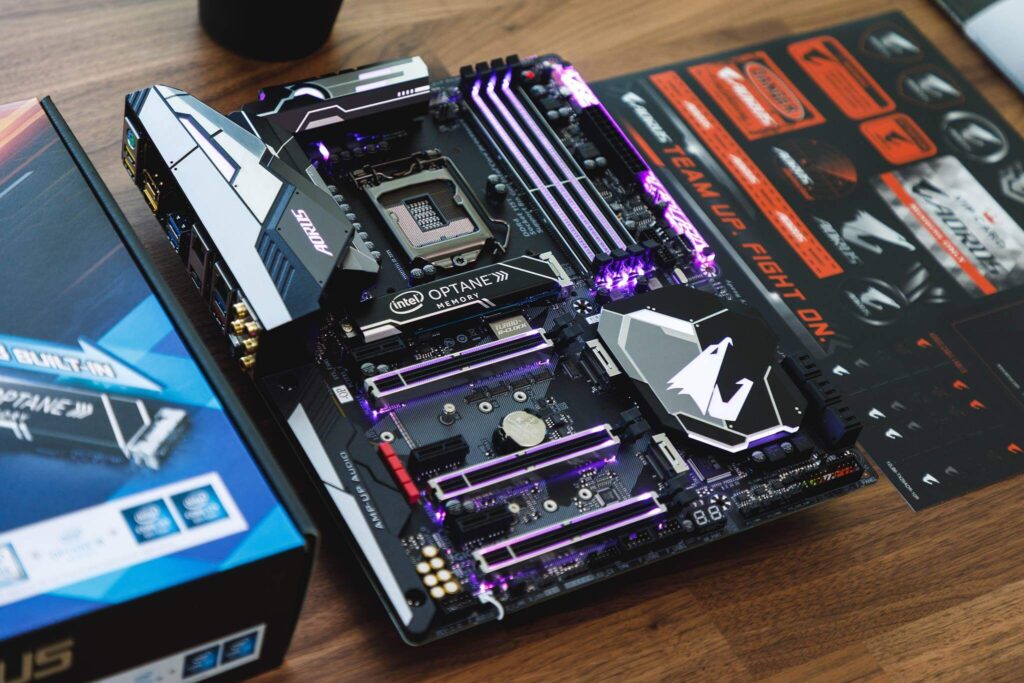
Before purchasing any RGB component, verify your motherboard model supports RGB Fusion 2.0. Older boards with RGB Fusion 1.0 have limited compatibility with current accessories.
Compatibility verification steps:
- Check your motherboard’s RGB header specifications in the manual
- Download the latest RGB Fusion software from GIGABYTE’s official website
- Verify your Windows version meets minimum requirements (Windows 10 64-bit recommended)
- Update motherboard BIOS to the latest version before installing RGB components
Warning: Generic RGB strips or controllers marketed as “universal” rarely work with RGB Fusion. Stick to officially supported components to avoid compatibility headaches.
Top RAM Brands with Proven RGB Fusion Sync
Memory manufacturers have varying levels of RGB Fusion integration. Some brands offer seamless sync, while others require workarounds or don’t support GIGABYTE’s ecosystem at all.
G.SKILL Trident Z Series
G.SKILL maintains the strongest partnership with GIGABYTE for RGB synchronization. Their Trident Z RGB and Trident Z Royal series integrate directly with RGB Fusion 2.0.
Verified compatible models:
- Trident Z RGB (F4-3200C16D-16GTZR and similar model numbers)
- Trident Z Royal (F4-3600C16D-32GTRS series)
- Trident Z Neo (AMD-optimized versions work on Intel boards too)
Setup requirements: Install G.SKILL’s lighting software first, then RGB Fusion. The software automatically detects compatible memory modules during initial scan.
Corsair Vengeance RGB Pro
Corsair’s partnership with GIGABYTE covers select Vengeance RGB Pro models. However, compatibility depends on specific part numbers and manufacturing dates.
Known working configurations:
- CMW32GX4M2C3200C16 (32GB kit, 3200MHz)
- CMW16GX4M2C3000C15 (16GB kit, 3000MHz)
Important: Corsair’s iCUE software can conflict with RGB Fusion. Disable iCUE’s memory control before enabling RGB Fusion sync, or choose one software platform for all lighting control.
Team Group T-Force Delta RGB
Team Group offers budget-friendly RGB memory with surprisingly good RGB Fusion compatibility. Their Delta RGB series provides reliable sync at lower price points.
Compatibility notes: Requires RGB Fusion 2.0 build 1.0.0.60 or newer. Earlier software versions don’t recognize Team Group modules properly.
RGB Accessories That Integrate Seamlessly
Beyond memory, several accessory categories offer excellent RGB Fusion integration. Focus on these proven categories for reliable synchronization.
RGB LED Strips and Extensions
GIGABYTE’s own RGB strips provide guaranteed compatibility, but third-party options exist with proper connector types.
Recommended specifications:
- 12V 4-pin RGB strips for basic color-changing effects
- 5V 3-pin ARGB strips for addressable individual LED control
- Maximum 3A current draw per header (check motherboard specifications)
Installation checklist:
- Power off system completely before connecting RGB strips
- Match connector orientation carefully (reversed connections can damage LEDs)
- Test with short strip sections before installing full lengths
- Use RGB Fusion’s strip configuration wizard to set LED counts
RGB Fans and Cooling Solutions
Several fan manufacturers offer RGB Fusion-compatible models, though setup complexity varies significantly.
Proven compatible brands:
- Cooler Master MasterFan MF120R: Direct RGB header connection, automatic detection
- Thermaltake Riing Plus: Requires TT RGB Plus software bridge to RGB Fusion
- NZXT Aer RGB 2: Limited compatibility through CAM software integration
Troubleshooting tip: If RGB fans aren’t detected, check both RGB header connections and PWM fan header connections. Some fans require both for proper software recognition.
RGB Cable Management and Aesthetics
Cable extensions and management accessories with integrated RGB lighting can enhance your build’s visual appeal.
Compatible accessory types:
- RGB cable combs with built-in LED strips
- Addressable RGB cable extensions (24-pin, 8-pin PCIe)
- RGB backplates and GPU support brackets
These accessories typically connect through standard RGB headers and sync automatically with RGB Fusion’s lighting profiles.
Software Setup and Configuration Best Practices
Proper software configuration determines whether your RGB ecosystem works flawlessly or becomes a constant source of frustration. Follow these steps for reliable synchronization.
Initial Installation Sequence
The order of software installation affects compatibility and stability. Install components in this specific sequence:
- Update Windows and motherboard BIOS to latest versions
- Install RGB Fusion 2.0 from GIGABYTE’s official download page
- Install component-specific software (G.SKILL, Corsair, etc.) after RGB Fusion
- Configure RGB Fusion first before enabling third-party lighting software
- Test each component individually before creating complex lighting profiles
Common Configuration Mistakes
Avoid these setup errors that break RGB synchronization:
- Installing multiple RGB software packages simultaneously: Creates driver conflicts and communication errors
- Enabling fast boot or hibernate: Prevents proper RGB initialization on system startup
- Using outdated RGB Fusion versions: Newer components require current software builds
- Incorrect RGB header connections: Mixed 12V/5V connections can damage components
Profile Creation and Management
RGB Fusion’s profile system allows complex lighting scenarios across multiple components. Create profiles strategically:
Profile organization tips:
- Create separate profiles for different use cases (gaming, work, ambient)
- Test profiles with all components before saving
- Export working profiles as backups before making changes
- Use simple effects initially, add complexity gradually
Performance considerations: Complex lighting effects with multiple RGB components can impact system performance slightly. Monitor CPU usage when running intensive lighting profiles during gaming.
Troubleshooting Common RGB Sync Issues
Even compatible components sometimes experience sync problems. These troubleshooting steps resolve most RGB Fusion issues systematically.
Components Not Detected
When RGB Fusion doesn’t recognize installed components, work through these diagnostic steps:
Hardware verification:
- Power off system and reseat all RGB header connections
- Verify correct header types (12V vs 5V) match component requirements
- Check for bent pins or damaged connectors
- Test components on different RGB headers if available
Software troubleshooting:
- Run RGB Fusion as administrator
- Disable Windows Defender real-time protection temporarily
- Clear RGB Fusion cache files in %AppData%GIGABYTE
- Reinstall RGB Fusion with previous version removed completely
Intermittent Sync Loss
Components that sync initially but lose connection require different troubleshooting approaches:
Power-related issues:
- Check PSU capacity for RGB component power draw
- Verify stable 12V and 5V rail voltages under load
- Test with RGB components disconnected to isolate power problems
Software conflicts:
- Identify conflicting RGB software in Task Manager
- Disable startup programs that access RGB hardware
- Update all RGB-related drivers and software
- Check Windows Event Viewer for RGB-related error messages
Performance Impact Solutions
RGB Fusion occasionally causes system slowdowns or stability issues. Address performance problems with these optimizations:
- Reduce lighting effect complexity: Simple static colors use minimal system resources
- Lower refresh rates: Decrease animation speed in RGB Fusion settings
- Limit concurrent RGB software: Run only RGB Fusion, disable manufacturer-specific tools
- Monitor system temperatures: RGB components generate additional heat in confined spaces
Future-Proofing Your RGB Ecosystem
RGB technology evolves rapidly, with new standards and compatibility requirements emerging regularly. Plan your RGB investments strategically to avoid obsolescence.
Emerging RGB Standards
Several new RGB technologies will impact future compatibility:
- ARGB 2.0: Higher LED density and improved color accuracy
- USB-C RGB control: Simplified connections for complex RGB setups
- Wireless RGB sync: Eliminates cable requirements for RGB accessories
- AI-driven lighting: Automatic color matching based on screen content
When purchasing new components, prioritize brands with active development partnerships with GIGABYTE. These manufacturers typically receive early access to new RGB Fusion features.
Upgrade Path Planning
Structure your RGB ecosystem for easy expansion and component replacement:
Infrastructure considerations:
- Choose motherboards with multiple RGB headers for future expansion
- Install RGB hubs or controllers for centralized management
- Plan cable routing for additional RGB components
- Reserve PSU capacity for RGB component power requirements
Budget-Conscious RGB Building
Build impressive RGB systems without excessive spending:
- Start with RGB memory: Provides immediate visual impact with guaranteed RGB Fusion compatibility
- Add basic RGB strips: Cost-effective way to add ambient lighting throughout the case
- Upgrade fans gradually: Replace stock fans with RGB versions over time
- Consider RGB accessories last: Cable extensions and aesthetic components provide minimal functional benefit
Focus spending on components that affect system performance first, then add RGB features to those functional upgrades.
Expert Recommendations and Final Considerations
After testing hundreds of RGB combinations, certain patterns emerge for reliable RGB Fusion ecosystems. These recommendations reflect real-world compatibility testing and user feedback.
Tier 1 Recommendations (Guaranteed Compatibility)
These combinations provide the most reliable RGB Fusion experience:
| Component Type | Recommended Brand/Model | Key Benefits |
|---|---|---|
| Memory | G.SKILL Trident Z RGB | Native RGB Fusion integration, reliable sync |
| RGB Strips | GIGABYTE RGB LED Strip | Guaranteed compatibility, full feature support |
| Fans | Cooler Master MasterFan MF120R | Direct header connection, automatic detection |
| Accessories | GIGABYTE RGB Headers/Extensions | Perfect compatibility, no software conflicts |
Budget-Friendly Alternatives
For cost-conscious builders, these options provide good RGB Fusion compatibility at lower prices:
- Team Group T-Force Delta RGB: Solid memory performance with reliable RGB sync
- Generic ARGB strips with proper connectors: Basic lighting effects at fraction of branded costs
- Thermaltake Riing fans: Good performance with acceptable RGB Fusion integration
Components to Avoid
Based on compatibility testing, avoid these problematic combinations:
- Razer Chroma RGB components (proprietary ecosystem conflicts with RGB Fusion)
- Generic RGB controllers without GIGABYTE certification
- Mixed 12V/5V RGB setups without proper voltage isolation
- RGB components requiring always-on manufacturer software
Final compatibility check: Before purchasing any RGB component, verify current RGB Fusion support by checking GIGABYTE’s official compatibility database. Component support can change with software updates, and manufacturer partnerships evolve over time.
Remember that RGB lighting should enhance your PC experience, not create technical frustrations. Start with proven compatible components, expand gradually, and prioritize system stability over complex lighting effects.
Ready to build your synchronized RGB ecosystem? Start by verifying your current motherboard’s RGB Fusion capabilities, then choose memory as your first RGB upgrade for immediate visual impact with guaranteed compatibility. Your perfectly synchronized RGB setup is just a few strategic component choices away.