RGB Fusion 2.0 has been the go-to RGB lighting software for many GIGABYTE users, but it’s not without its problems. Frequent crashes, compatibility issues, and limited customization options have left many PC enthusiasts searching for better alternatives. Whether you’re dealing with software conflicts, seeking more advanced features, or simply want a more stable lighting control experience, there are several powerful options available.
This guide covers 10 proven alternatives that can replace or enhance your RGB lighting setup. Each solution has been tested across different hardware configurations, and I’ll show you exactly what works, what doesn’t, and how to implement each option safely.
Why Consider RGB Fusion 2.0 Alternatives?
Before diving into alternatives, let’s address why you might need to replace RGB Fusion 2.0 in the first place. Understanding these issues helps you choose the right replacement for your specific situation.
Common RGB Fusion 2.0 Problems
- System crashes and freezes: Many users report blue screens when RGB Fusion conflicts with other software or drivers
- Limited device support: Only works with GIGABYTE hardware, leaving other RGB components uncontrolled
- Poor synchronization: Different components often fall out of sync, creating jarring lighting effects
- Resource consumption: Can consume significant CPU and memory resources in the background
- Update issues: New versions sometimes break existing configurations or introduce new bugs
Warning: Before switching to any alternative, create a system restore point. Some RGB software can conflict with existing drivers, and you’ll want a quick rollback option if issues arise.
What to Look for in Alternatives
The best RGB Fusion alternatives should offer:
- Broader hardware compatibility across multiple brands
- Stable performance without system conflicts
- Advanced customization options
- Reliable synchronization between devices
- Regular updates and active community support
Universal RGB Control Software
These solutions work across multiple hardware brands and offer the most comprehensive control over your entire RGB ecosystem.
1. OpenRGB
OpenRGB stands out as the most versatile open-source RGB control software available. It supports over 1,000 devices from dozens of manufacturers, making it the ultimate universal solution.
Key Features:
- Supports GIGABYTE, ASUS, MSI, Corsair, Razer, and many other brands
- No background services consuming system resources
- Plugin system for extended functionality
- Cross-platform compatibility (Windows, Linux, macOS)
- Active community development and regular updates
Setup Process:
- Download the latest release from the official OpenRGB website
- Close all other RGB software before installation
- Run the installer as administrator
- Launch OpenRGB and check the device detection tab
- If your GIGABYTE hardware isn’t detected, install the SMBus driver from the OpenRGB website
Compatibility Check: Visit the OpenRGB supported devices page and search for your exact motherboard and GPU models. Not all GIGABYTE variants are supported, particularly newer releases.
Troubleshooting Tip: If OpenRGB doesn’t detect your hardware, try running it in safe mode first. Some GIGABYTE boards require specific BIOS settings to enable RGB control via third-party software.
2. SignalRGB
SignalRGB offers a polished, user-friendly interface with extensive customization options and excellent synchronization capabilities.
Key Features:
- Cloud-based effect library with thousands of presets
- Game integration for reactive lighting
- Music visualization and screen mirroring
- Mobile app for remote control
- Professional-grade effect editor
Implementation Steps:
- Create a free SignalRGB account
- Download and install the desktop application
- Disable RGB Fusion 2.0 in Windows services
- Restart your computer
- Launch SignalRGB and follow the hardware detection wizard
Important: SignalRGB requires an internet connection for full functionality. If you need offline RGB control, consider OpenRGB instead.
3. Artemis RGB
Artemis focuses on advanced layering and modular effects, making it ideal for users who want precise control over complex lighting setups.
Standout Features:
- Layer-based effect system
- Extensive plugin ecosystem
- Real-time system monitoring integration
- Advanced color profiling tools
- Custom device mapping
Best Use Cases: Artemis works exceptionally well for users with mixed-brand setups who want professional-level customization. However, it has a steeper learning curve than other alternatives.
Brand-Specific Alternatives
If you’re planning to standardize on specific hardware brands, these manufacturer-specific solutions often provide the most seamless integration.
4. ASUS Aura Sync
While primarily for ASUS hardware, Aura Sync supports select GIGABYTE components and offers excellent stability.
Compatibility Notes:
- Works with some GIGABYTE RGB components through universal headers
- Requires ASUS motherboard or compatible RGB controller
- Check the official compatibility list before switching
Migration Process:
- Verify your hardware compatibility on ASUS’s official support page
- Uninstall RGB Fusion completely using the official removal tool
- Install Aura Sync from the ASUS support website
- Configure RGB headers in BIOS if necessary
5. MSI Mystic Light
MSI’s solution offers solid performance and broader third-party support than many alternatives.
Key Advantages:
- Supports select non-MSI RGB strips and fans
- Stable performance with minimal system impact
- Integration with MSI monitoring tools
- Mobile app support
Setup Requirement: You’ll need an MSI motherboard or MSI RGB controller to use Mystic Light effectively with GIGABYTE components.
Hardware-Based Solutions
These alternatives rely on dedicated hardware controllers, eliminating software conflicts entirely.
6. Corsair iCUE with Commander Pro
The Commander Pro provides independent RGB control that doesn’t rely on motherboard software, making it an excellent upgrade path.
Hardware Requirements:
- Corsair Commander Pro or Commander Core
- Compatible RGB strips or fans
- Available USB header or USB port
Installation Process:
- Install the Commander Pro in an available drive bay
- Connect RGB devices to the Commander Pro’s RGB channels
- Connect the Commander Pro to a USB 2.0 header
- Install iCUE software
- Configure lighting profiles in iCUE
Cost Consideration: This solution requires purchasing additional hardware (~$60-80 for Commander Pro), but provides the most reliable RGB control with zero software conflicts.
7. NZXT CAM with RGB Controller
NZXT’s ecosystem offers excellent build integration and monitoring alongside RGB control.
System Integration Benefits:
- Combined RGB and system monitoring
- Automatic fan curve adjustment
- Temperature-reactive lighting
- Clean, intuitive interface
Implementation Steps:
- Purchase NZXT RGB & Fan Controller or compatible NZXT case
- Connect existing RGB components to NZXT controller
- Install CAM software
- Configure lighting and monitoring preferences
Lightweight and Specialized Options
These solutions focus on specific use cases or minimal system impact.
8. RGBeat
RGBeat specializes in music-reactive lighting with minimal system overhead.
Ideal For:
- Music producers and DJs
- Gaming setups focused on audio-visual synchronization
- Users who primarily want music-reactive effects
Setup Requirements:
- Compatible RGB hardware (check support list)
- Audio input source (microphone or line-in)
- Windows 10 or newer
9. Aurora RGB
Aurora focuses on game integration and per-application lighting profiles.
Gaming-Focused Features:
- Game-specific lighting profiles
- Keystroke visualization
- Health and ammo indicators
- Support for 100+ games
Best Use Case: Gamers who want immersive lighting that responds to in-game events and system status.
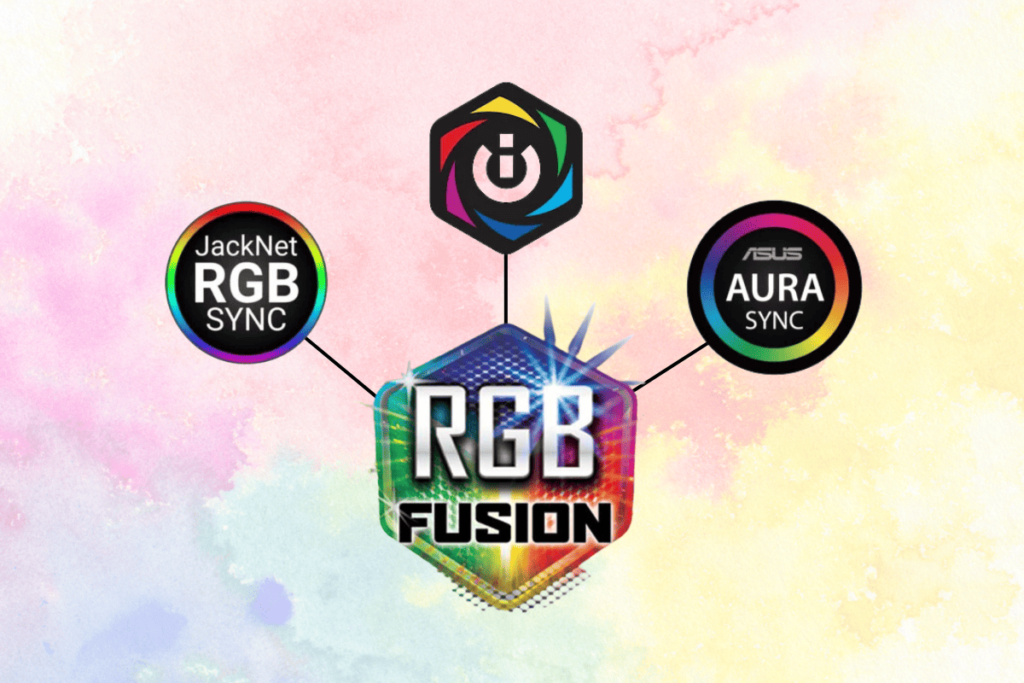
10. JackNet RGB Sync
A lightweight solution specifically designed for synchronizing multiple RGB software packages.
Unique Approach:
- Acts as a bridge between different RGB software
- Allows partial RGB Fusion functionality alongside other software
- Minimal resource usage
- Useful for mixed-hardware setups
Implementation Note: This solution works best when you need to keep some RGB Fusion functionality while adding features from other software.
Implementation Best Practices
Successfully switching from RGB Fusion 2.0 requires careful planning and execution. Follow these steps to avoid common pitfalls.
Pre-Installation Checklist
- Document current setup: Take screenshots of your current RGB configuration
- Create system restore point: Essential for quick rollback if issues occur
- Download drivers: Have motherboard and GPU drivers ready for reinstallation
- Check hardware compatibility: Verify each RGB component works with your chosen alternative
Safe Removal Process
Step-by-step RGB Fusion removal:
- Close RGB Fusion completely (check system tray)
- Open Windows Services and disable RGB Fusion services
- Use Windows “Add or Remove Programs” to uninstall
- Run CCleaner or similar tool to remove registry entries
- Restart computer before installing alternative
Critical Warning: Never install multiple RGB software packages simultaneously. This causes driver conflicts and can lead to system instability.
Testing and Troubleshooting
After installing your chosen alternative:
- Test each RGB zone individually: Verify all components respond correctly
- Check system stability: Run stress tests to ensure no conflicts exist
- Monitor resource usage: Ensure the new software doesn’t consume excessive resources
- Test sleep/wake cycles: Many RGB issues appear during power state changes
If you encounter issues, start with OpenRGB’s safe mode or revert to your system restore point and try a different alternative.
Making the Right Choice for Your Setup
Selecting the best RGB Fusion alternative depends on your specific hardware configuration, technical expertise, and lighting preferences.
Decision Matrix
| Use Case | Best Option | Why |
|---|---|---|
| Mixed-brand hardware | OpenRGB | Broadest compatibility, active development |
| Gaming focus | SignalRGB or Aurora | Game integration and reactive effects |
| Professional stability | Hardware controller + iCUE | Eliminates software conflicts entirely |
| Music/streaming setup | RGBeat | Specialized audio-reactive features |
| Minimal system impact | JackNet RGB Sync | Lightweight bridge solution |
Budget Considerations
Free solutions: OpenRGB, SignalRGB (free tier), and Aurora provide excellent functionality without additional hardware costs.
Hardware investments: Commander Pro (~$70) or NZXT controllers (~$50) require upfront costs but eliminate ongoing software issues.
Long-term value: Hardware-based solutions often provide better long-term stability and don’t break with Windows updates.
Future-Proofing Your Choice
Consider these factors for long-term satisfaction:
- Update frequency: Choose solutions with active development
- Community support: Larger user communities provide better troubleshooting resources
- Hardware upgrade compatibility: Ensure your choice supports future component upgrades
- Platform independence: Cross-platform solutions offer more flexibility
Conclusion
RGB Fusion 2.0’s limitations don’t have to hold back your lighting setup. Whether you choose the universal compatibility of OpenRGB, the gaming focus of SignalRGB, or the rock-solid stability of hardware controllers, each alternative offers significant improvements over GIGABYTE’s stock solution.
Start with OpenRGB if you want immediate improvement with minimal risk—it’s free, well-supported, and works with most hardware configurations. For users seeking maximum stability and professional results, investing in a dedicated RGB controller eliminates software conflicts entirely.
Remember to test thoroughly after any switch and keep your system restore point handy. The RGB software landscape continues evolving rapidly, so revisit your choice annually to ensure you’re getting the best possible experience.
Ready to upgrade your RGB experience? Download OpenRGB today and discover what stable, feature-rich lighting control feels like. Your eyes—and your system stability—will thank you.