
Picture this: you’ve just spent hours setting up your dream RGB lighting setup, connected everything perfectly, and hit the power button. Nothing lights up. Or worse—half your strips flicker weakly while the other half blazes at full brightness. Sound familiar?
The culprit? Mixing incompatible RGB strip voltages and connectors. This single mistake has frustrated thousands of PC builders and cost them both time and money. The confusion between 5V 3-pin ARGB and 12V 4-pin RGB systems isn’t just technical jargon—it’s the difference between a stunning light show and a expensive pile of non-functional components.
RGB Fusion, Gigabyte’s lighting ecosystem, supports both standards but requires you to match the right strips with the right headers. Get it wrong, and you’ll either damage your components or end up with lighting that looks like a disco ball having a seizure.
In this guide, we’ll break down exactly what separates these two systems, help you identify which one your motherboard uses, and show you how to avoid the costly mistakes that trip up even experienced builders.
Understanding the Fundamental Difference: 5V vs 12V Systems
The voltage difference between ARGB and RGB strips isn’t just a number—it fundamentally changes how the lighting works and what you can achieve with it.
5V ARGB (Addressable RGB) – The Smart System
Key characteristics:
- Individual LED control – each LED can display different colors simultaneously
- 3-pin connector: +5V, Data, Ground
- Uses digital signal transmission
- Supports complex animations and effects
- Lower power consumption per LED
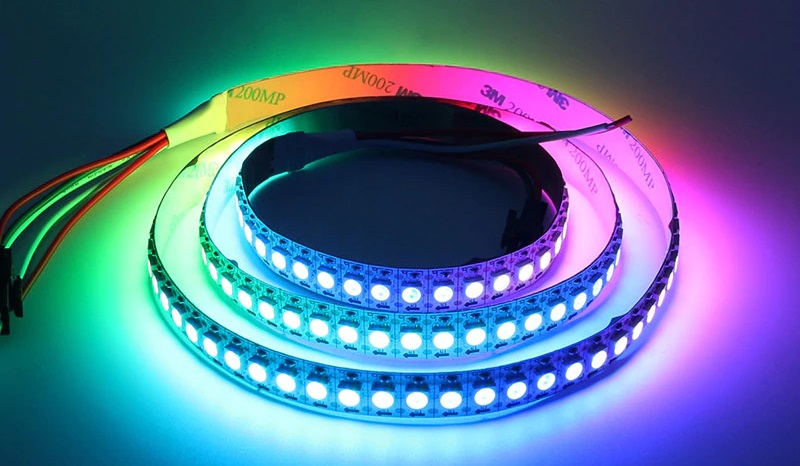
ARGB strips contain tiny controllers (usually WS2812B chips) embedded between every few LEDs. This allows software like RGB Fusion to send specific color commands to each section of the strip. You can create rainbow waves, color chasing effects, and even display reactive lighting that responds to music or system temperatures.
12V RGB – The Simple System
Key characteristics:
- Zone-based control – entire strip shows same color
- 4-pin connector: +12V, Red, Green, Blue
- Uses analog signal transmission
- Limited to solid colors and simple fading
- Higher power consumption but brighter output
Traditional RGB strips work like three separate colored lights. The motherboard controls the intensity of red, green, and blue channels simultaneously across the entire strip. While simpler, this system can produce very bright, uniform lighting that’s perfect for accent lighting or color-matched themes.
Critical warning: Never connect a 5V ARGB strip to a 12V header or vice versa. The voltage mismatch will instantly damage the LEDs and potentially harm your motherboard’s RGB controller.
Identifying Your Motherboard’s RGB Headers
Before buying any RGB strips, you need to know exactly what headers your motherboard provides. Here’s how to identify them correctly:
Physical Inspection Method
Look for these visual cues on your motherboard:
| Header Type | Pin Count | Common Labels | Connector Size |
|---|---|---|---|
| 5V ARGB | 3 pins | ARGB, JRAINBOW, 5V_RGB | Smaller, compact |
| 12V RGB | 4 pins | RGB, LED_STRIP, 12V_RGB | Larger, wider |
The headers are usually located near the bottom edge of the motherboard or close to the 24-pin power connector. They’re often white or black plastic with metal pins visible inside.
Documentation Check
Your motherboard manual contains the definitive answer. Look for:
- The “Connectors” or “Headers” section
- RGB/LED subsection with pin layouts
- Voltage specifications clearly stated
- Maximum power draw limitations
If you’ve lost your manual, download the PDF from your motherboard manufacturer’s support page. Search for your exact model number—even slight variations can have different RGB capabilities.
RGB Fusion Software Detection
Install RGB Fusion 2.0 and check the “LED” tab. The software will show:
- Available RGB zones and their types
- Connected device detection
- Voltage compatibility warnings
- Maximum LED count per header
If RGB Fusion doesn’t detect your strips after connection, you likely have a voltage mismatch or faulty connection.
RGB Fusion Compatibility and Setup Process
RGB Fusion 2.0 handles both RGB standards, but the setup process differs significantly between them. Here’s the step-by-step approach for each:
Setting Up 5V ARGB Strips
Pre-installation checklist:
- Verify your motherboard has 5V ARGB headers
- Check maximum LED count (usually 300-500 LEDs per header)
- Ensure strips are WS2812B or compatible chipset
- Plan your cable routing to avoid interference
Installation steps:
- Power down and unplug your system completely
- Locate the 3-pin ARGB header on your motherboard
- Align the connector with the arrow marking (usually pin 1)
- Press firmly until the connector seats completely
- Route cables away from CPU cooler and GPU fans
- Power on and launch RGB Fusion 2.0
RGB Fusion configuration:
- Navigate to LED tab → ARGB Strip
- Set correct LED count for your strip length
- Choose from advanced effects: Rainbow Wave, Breathing, Music Sync
- Adjust speed and brightness to preference
- Save profile to prevent reset on reboot
Setting Up 12V RGB Strips
Pre-installation checklist:
- Confirm 12V RGB header availability
- Calculate total power draw (typically 1-2A per meter)
- Verify strip length doesn’t exceed header capacity
- Check for proper 4-pin connector orientation
Installation process:
- Power down system and disconnect power cable
- Find the 4-pin RGB header (larger than ARGB)
- Match the connector keying—it should only fit one way
- Push down until you hear/feel a click
- Secure cables with zip ties to prevent disconnection
- Boot system and open RGB Fusion
Software setup:
- Go to LED tab → RGB Strip
- Select static color or basic effects (Flash, Pulse)
- Adjust color intensity using RGB sliders
- Set timing for dynamic effects
- Apply and save configuration
The #1 Mistake: Voltage Mismatch and How to Avoid It
The most expensive mistake in RGB lighting is connecting strips to the wrong voltage header. Here’s exactly what happens and how to prevent it:
What Happens When You Mix Voltages
5V ARGB strip on 12V header:
- Instant LED burnout due to overvoltage
- Possible damage to strip’s control chips
- Risk of motherboard RGB controller failure
- Complete loss of strip functionality
12V RGB strip on 5V header:
- Dim, barely visible lighting
- Inconsistent color reproduction
- Potential for flickering or intermittent operation
- No permanent damage, but useless performance
Prevention Strategies
Double-check method:
- Count the pins on your motherboard header
- Count the pins on your RGB strip connector
- Read the voltage marking on both components
- Cross-reference with motherboard manual
- Only proceed if everything matches perfectly
Use adapters when necessary: If you have mismatched components, don’t force compatibility. Instead:
- Buy voltage-appropriate strips for your motherboard
- Use external RGB controllers that support your strip type
- Consider RGB hubs that convert between standards
- Replace motherboard if RGB capability is critical
Recovery from Voltage Mistakes
If you’ve already connected the wrong voltage:
- Immediately power down the system
- Disconnect the RGB strip from the header
- Test the motherboard RGB header with a known-good strip
- Check if RGB Fusion still detects the header
- Replace damaged components if necessary
Most motherboards have protection circuits, but they’re not foolproof. Acting quickly can prevent permanent damage.
Troubleshooting Common RGB Fusion Issues
Even with correct connections, RGB setups can develop problems. Here’s how to diagnose and fix the most common issues:
Strip Not Detected in RGB Fusion
Diagnostic steps:
- Check physical connection—reseat the connector firmly
- Verify RGB Fusion is latest version (check Gigabyte support)
- Restart RGB Fusion service in Windows Services
- Test with different RGB strip to isolate hardware vs software
- Check Windows Device Manager for RGB controller errors
Common solutions:
- Reinstall RGB Fusion with admin privileges
- Disable Windows fast startup (can interfere with RGB detection)
- Update motherboard BIOS to latest version
- Check for conflicting RGB software from other manufacturers
Partial Strip Lighting or Color Issues
For ARGB strips:
- Verify LED count setting matches actual strip length
- Check for damaged LEDs causing signal interruption
- Ensure power supply can handle total LED draw
- Test with shorter strip to isolate power vs signal issues
For RGB strips:
- Inspect all four pins for proper contact
- Check for loose connections in extension cables
- Measure voltage at strip connector (should be steady 12V)
- Test individual color channels in RGB Fusion
Performance and Stability Problems
Flickering or unstable lighting:
- Check PSU capacity—RGB can draw significant power
- Route RGB cables away from high-current wires
- Use ferrite cores on RGB cables to reduce interference
- Lower effect speed or brightness to reduce power draw
- Add external power injection for long ARGB strips
Software crashes or freezing:
- Run RGB Fusion as administrator
- Disable antivirus real-time scanning temporarily
- Close other RGB software before launching RGB Fusion
- Check Windows Event Viewer for specific error codes
- Perform clean install of RGB Fusion
Expansion Options and Advanced Setups
Once you understand the basics, you can create more complex RGB systems that go beyond simple motherboard headers.
RGB Hubs and Controllers
When to use external controllers:
- Need more RGB zones than motherboard provides
- Want to mix 5V and 12V strips in same system
- Require higher power capacity for extensive lighting
- Need standalone operation without RGB Fusion
Popular expansion solutions:
- ARGB splitters: Connect multiple 5V strips to single header
- RGB amplifiers: Boost signal for long 12V strip runs
- Standalone controllers: Independent operation with remote control
- Smart controllers: WiFi-enabled for phone app control
Power Considerations for Large Setups
Calculate total power draw:
| Strip Type | Power per LED | Typical Strip Length | Total Draw |
|---|---|---|---|
| 5V ARGB (WS2812B) | 0.3W per LED | 60 LEDs/meter | 18W per meter |
| 12V RGB (5050 SMD) | 0.24W per LED | 60 LEDs/meter | 14.4W per meter |
Power injection guidelines:
- Motherboard headers typically support 2-3A maximum
- Add external power every 3-5 meters for ARGB strips
- Use adequate gauge wire for power runs (18-20 AWG minimum)
- Consider dedicated 5V or 12V power supplies for large installations
Integration with Other RGB Ecosystems
RGB Fusion can work alongside other manufacturer’s software, but requires careful planning:
Compatible combinations:
- Use RGB Fusion for motherboard zones
- Separate software for GPU, RAM, peripherals
- Sync via third-party tools like SignalRGB or OpenRGB
- Manual color coordination across platforms
Avoid conflicts by:
- Running only one RGB software at a time
- Setting static colors in unused software
- Using hardware-level RGB control when possible
- Testing compatibility before committing to specific brands
Conclusion and Next Steps
Understanding the difference between 5V ARGB and 12V RGB systems is crucial for any successful lighting build. The voltage mismatch mistake has claimed countless RGB strips and frustrated builders worldwide, but it’s completely avoidable with proper identification and careful installation.
Key takeaways:
- Always verify voltage compatibility before connecting anything
- Count pins and check labels on both motherboard and strips
- Use RGB Fusion’s detection features to confirm proper setup
- Plan power requirements for extensive lighting installations
- Keep expansion options in mind for future upgrades
Your RGB setup should enhance your system’s aesthetics, not become a source of frustration. Take time to plan your installation, double-check compatibility, and don’t rush the connection process.
Ready to start your RGB build? Begin by identifying your motherboard’s exact RGB capabilities using the methods outlined above. Download the latest RGB Fusion software and your motherboard manual before purchasing any strips. Remember: measuring twice and connecting once will save you both money and headaches.
Have questions about your specific setup or run into issues we didn’t cover? The RGB community is active and helpful—don’t hesitate to seek advice before making potentially expensive mistakes. Your perfect lighting setup is achievable with the right knowledge and careful execution.