
Picture this: you’ve just finished your dream RGB build, complete with Gigabyte’s RGB Fusion ecosystem lighting up your entire setup. Everything looks perfect until you realize your RAM sticks are sitting there like dead pixels in your rainbow masterpiece. The frustration is real, and you’re not alone.
RGB Fusion compatibility with memory modules isn’t as straightforward as plugging in and expecting magic. Some RAM kits integrate flawlessly, others require workarounds, and some flat-out refuse to cooperate. The difference often comes down to understanding which memory controllers play nice with Gigabyte’s ecosystem and why certain conflicts occur.
This guide cuts through the marketing fluff to give you the real story about RGB Fusion RAM compatibility. You’ll learn exactly which memory modules work without headaches, spot potential conflicts before they happen, and troubleshoot issues when your lighting setup goes sideways.
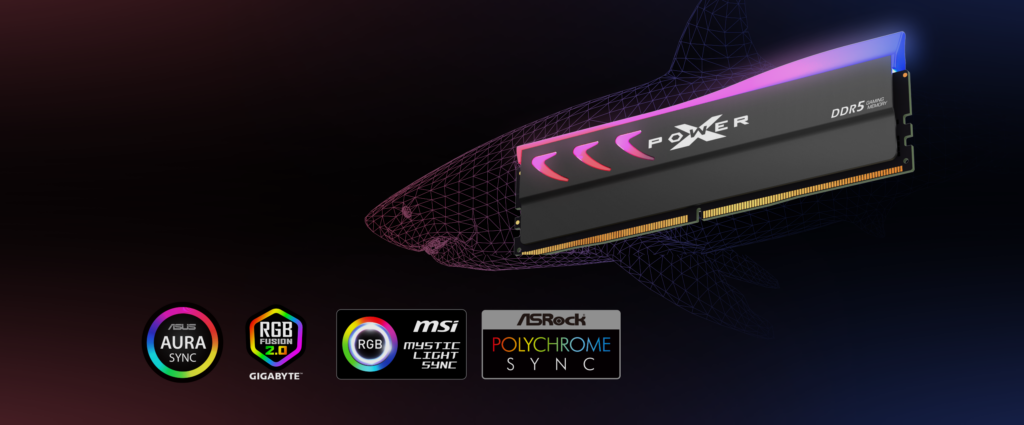
Understanding RGB Fusion’s Memory Detection System
RGB Fusion doesn’t just magically detect your RAM’s lighting. It relies on specific communication protocols to identify and control RGB memory modules. The system primarily uses SMBus (System Management Bus) communication through your motherboard’s memory controller.
Here’s how the detection process actually works:
- Initial scan: RGB Fusion queries connected devices during system startup
- Protocol handshake: Compatible RAM responds with its device ID and capabilities
- Control establishment: The software maps lighting zones and available effects
- Ongoing communication: Real-time lighting updates flow through established channels
The critical point most people miss: your motherboard’s chipset must support the specific SMBus implementation your RAM uses. Intel and AMD handle this differently, which explains why the same RAM kit might work on one platform but fail on another.
Warning: Never assume compatibility based on brand alone. Even within the same manufacturer’s lineup, different memory series use different RGB controllers. Always verify your exact model numbers against official compatibility lists.
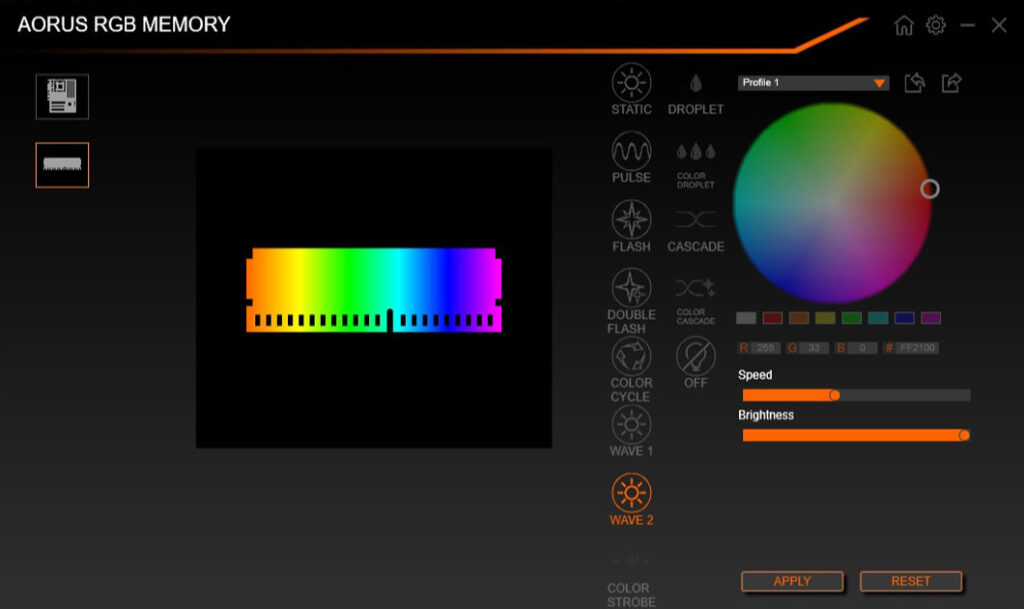
To check if your system can detect RGB memory properly, open RGB Fusion and navigate to the memory section. If you see “No RGB Memory Detected” despite having RGB RAM installed, you’re dealing with either a compatibility issue or a communication problem.
Confirmed Compatible RAM Modules
Based on extensive testing and official documentation, these memory modules consistently work with RGB Fusion across different motherboard generations:
Tier 1: Guaranteed Compatibility
- G.Skill Trident Z RGB series: DDR4-3200 through DDR4-4000 speeds
- Corsair Vengeance RGB Pro: Most DDR4 variants, especially 3200MHz and 3600MHz kits
- Team T-Force Delta RGB: DDR4-3200 and DDR4-3600 configurations
- ADATA XPG Spectrix D60G: DDR4-3200 through DDR4-3600 speeds
Tier 2: Usually Compatible (Minor Issues Possible)
- Crucial Ballistix RGB: Works but may require manual profile selection
- Kingston Fury Beast RGB: Compatible with newer RGB Fusion versions only
- Patriot Viper RGB: Limited effect support, basic lighting works
Important verification step: Even with “guaranteed compatible” modules, always download the latest RGB Fusion version from Gigabyte’s official website. Compatibility often improves with software updates, and older versions may not recognize newer memory revisions.
To verify compatibility before purchasing, check three sources:
- Your motherboard’s official memory QVL (Qualified Vendor List)
- Gigabyte’s RGB Fusion compatibility database
- The memory manufacturer’s compatibility tool
If all three sources confirm compatibility, you’re virtually guaranteed a smooth experience. If only one or two sources list your desired kit, proceed with caution and have a return plan ready.
Common Compatibility Conflicts and Root Causes
Understanding why certain RAM modules conflict with RGB Fusion helps you avoid problematic combinations and troubleshoot existing issues more effectively.
SMBus Address Conflicts
Multiple RGB devices using the same SMBus address create communication chaos. This commonly happens when mixing different RGB memory brands or combining RGB RAM with certain RGB coolers.
Symptoms:
- Intermittent lighting control
- Effects applying to wrong memory slots
- RGB Fusion freezing during memory detection
Solution: Use memory modules from the same manufacturer and series. If mixing is unavoidable, manually assign different SMBus addresses through advanced BIOS settings (if available).
Chipset Limitations
Older chipsets (pre-2018) often lack full SMBus implementation for RGB control. B450 and X470 boards particularly struggle with newer RGB memory protocols.
Quick compatibility check: If your motherboard was released before 2019, verify RGB memory support in the manual’s specifications section. Look specifically for “RGB Memory Support” or “Addressable RGB Memory” listings.
Power Delivery Issues
RGB memory modules draw additional power for lighting effects. Insufficient power delivery through memory slots can cause lighting failures or system instability.
Red flags to watch for:
- Lighting works initially but fails after extended use
- Effects become dimmer over time
- System crashes during intensive RGB animations
This issue primarily affects budget motherboards with basic power delivery designs. High-end boards with robust VRM systems rarely experience these problems.
BIOS Version Dependencies
RGB Fusion’s memory detection capabilities improve with BIOS updates. Older BIOS versions may not recognize newer memory modules or support advanced lighting features.
Action item: Before troubleshooting compatibility issues, update your BIOS to the latest version. Many apparent “incompatibilities” resolve with proper BIOS support.
Platform-Specific Considerations (Intel vs AMD)
RGB memory compatibility varies significantly between Intel and AMD platforms due to different chipset architectures and SMBus implementations.
Intel Platform Advantages
Intel chipsets generally offer more consistent RGB memory support across different generations. The standardized SMBus implementation means fewer compatibility surprises.
Best Intel platforms for RGB memory:
- Z590/Z690/Z790: Excellent compatibility with all major RGB memory brands
- B560/B660/B760: Good compatibility, occasional issues with high-speed kits
- H510/H610/H670: Basic compatibility, limited to simpler RGB effects
Intel-specific tip: Enable “Above 4G Decoding” in BIOS if you experience RGB detection issues. This setting affects how the system allocates memory addresses for RGB communication.
AMD Platform Considerations
AMD’s approach to RGB memory support has evolved significantly. Newer AM4 and AM5 platforms offer excellent compatibility, but older systems may struggle.
AMD compatibility by generation:
- AM5 (X670/B650): Excellent RGB memory support, on par with Intel
- AM4 X570/B550: Good compatibility with most RGB memory
- AM4 X470/B450: Limited compatibility, frequent manual configuration required
- AM4 A320/B350: Poor RGB memory support, avoid if possible
AMD-specific troubleshooting: If RGB memory isn’t detected on AM4 platforms, try disabling “Memory Context Restore” in BIOS. This setting can interfere with RGB detection on some configurations.
Cross-Platform Memory Considerations
Moving RGB memory between Intel and AMD systems isn’t always seamless. Different platforms may interpret RGB profiles differently, requiring reconfiguration.
Migration checklist:
- Export RGB profiles before switching platforms
- Update RGB Fusion to the latest version for your new platform
- Clear RGB settings and re-detect memory modules
- Rebuild custom lighting profiles from scratch
Troubleshooting RGB Memory Detection Issues
When RGB Fusion fails to detect your memory modules, systematic troubleshooting saves time and prevents unnecessary hardware returns.
Step 1: Verify Physical Installation
Before diving into software issues, confirm your memory is properly seated and powered.
Physical inspection checklist:
- Memory modules fully inserted with retention clips engaged
- RGB power connectors (if separate) properly connected
- No visible damage to RGB lighting strips or connectors
- Memory installed in correct slots per motherboard manual
Test each memory module individually to isolate faulty sticks. RGB issues often affect individual modules rather than entire kits.
Step 2: Software Environment Check
Multiple RGB software packages can conflict with each other, preventing proper memory detection.
Software conflict resolution:
- Close all RGB software except RGB Fusion
- Check Windows Task Manager for background RGB processes
- Temporarily disable Windows fast startup
- Run RGB Fusion as administrator
Common conflicting software includes Corsair iCUE, ASUS Armoury Crate, MSI Dragon Center, and Razer Synapse. These programs can claim exclusive control over RGB devices.
Step 3: BIOS Configuration Verification
Incorrect BIOS settings frequently cause RGB detection failures, especially on AMD platforms.
Critical BIOS settings to verify:
- RGB Header Control: Set to “Software” or “RGB Fusion”
- SMBus Support: Enabled (if available as separate option)
- Memory Training: Set to “Auto” or “Enabled”
- Fast Boot: Disabled during troubleshooting
Advanced troubleshooting: If standard settings don’t work, try loading BIOS defaults and reconfiguring only essential settings. Sometimes accumulated BIOS changes create unexpected conflicts.
Step 4: Driver and Firmware Updates
Outdated drivers or firmware can prevent proper RGB memory communication.
Update sequence:
- Update motherboard BIOS to latest version
- Install latest chipset drivers from motherboard manufacturer
- Download current RGB Fusion version from Gigabyte
- Check for memory module firmware updates (rare but possible)
After each update, restart your system completely before testing RGB detection. Some changes only take effect after full power cycles.
Step 5: Hardware Isolation Testing
If software troubleshooting fails, methodically test hardware components to identify the problem source.
Isolation testing procedure:
- Test with single memory module in different slots
- Try memory modules in another RGB Fusion compatible system
- Test with known-good RGB memory modules
- Verify motherboard RGB headers with simple RGB strips
This process helps determine whether the issue lies with the memory modules, motherboard, or system configuration.
Best Practices for RGB Memory Setup
Following established best practices prevents most RGB memory issues and ensures optimal performance and compatibility.
Purchase Planning
Smart purchasing decisions eliminate most compatibility headaches before they start.
Pre-purchase verification steps:
- Check your motherboard’s official RGB memory QVL
- Verify current RGB Fusion version supports your target memory
- Read recent user reviews for your specific motherboard + memory combination
- Confirm return policy allows RGB compatibility returns
Buying tip: Purchase memory kits rather than individual modules when possible. Kits are factory-tested together and more likely to work harmoniously in RGB setups.
Installation Best Practices
Proper installation technique prevents both functional and cosmetic issues with RGB memory.
Installation sequence:
- Install memory modules before connecting RGB cables
- Verify system boots and memory is detected in BIOS
- Connect RGB power cables (if separate from memory slots)
- Install RGB Fusion software
- Configure RGB settings last
This sequence ensures memory functionality isn’t compromised by RGB configuration issues.
Configuration Optimization
Optimal RGB Fusion configuration improves both reliability and visual appeal.
Recommended settings for stability:
- Effect complexity: Start with simple effects, add complexity gradually
- Brightness levels: Use 75% or lower to reduce power consumption
- Sync frequency: Set to “Medium” rather than “High” for better compatibility
- Profile management: Create separate profiles for different use cases
Performance consideration: Complex RGB effects can consume CPU resources during gaming or intensive tasks. Consider creating “performance” profiles with minimal lighting for competitive gaming sessions.
Maintenance and Updates
Regular maintenance keeps RGB memory functioning optimally over time.
Monthly maintenance checklist:
- Check for RGB Fusion software updates
- Verify all RGB effects still function correctly
- Clean dust from memory modules and RGB strips
- Review and organize RGB profiles
Update strategy: Don’t update RGB Fusion immediately when new versions release. Wait 2-3 weeks and check user feedback for stability issues. RGB software updates sometimes introduce new bugs while fixing others.
Backup and Recovery Planning
RGB configurations can disappear after system updates or hardware changes. Proper backup prevents starting from scratch.
Backup procedure:
- Export all custom RGB profiles to external storage
- Document current RGB Fusion version and settings
- Take photos of complex custom lighting setups
- Keep notes about any special configuration requirements
Store backups separately from your main system. Cloud storage or external drives work well for RGB profile backups.
Future-Proofing Your RGB Memory Investment
RGB memory technology continues evolving rapidly. Making informed decisions today protects your investment and ensures long-term compatibility.
Emerging Standards and Protocols
New RGB communication protocols are emerging that promise better compatibility and more advanced effects.
Standards to watch:
- OpenRGB: Open-source standard gaining manufacturer support
- ARGB 2.0: Enhanced addressable RGB with improved power efficiency
- DDR5 integrated RGB: Memory modules with built-in RGB controllers
When purchasing new RGB memory, prioritize modules that support multiple protocols. This flexibility protects against future compatibility issues as standards evolve.
Platform Migration Considerations
Planning future system upgrades helps maintain RGB memory compatibility across platform changes.
Migration-friendly choices:
- Choose RGB memory brands with broad platform support
- Avoid proprietary RGB protocols tied to single manufacturers
- Prioritize standard JEDEC memory timings over extreme overclocking profiles
- Document current configurations for easier migration
Upgrade timeline consideration: RGB memory typically maintains compatibility for 3-4 years after purchase. Plan system upgrades accordingly to maximize RGB investment value.
Software Ecosystem Evolution
RGB software continues improving, but changes can affect existing configurations.
Future-proofing strategies:
- Maintain backups of working RGB Fusion versions
- Test new software versions in isolated environments first
- Join manufacturer forums for early compatibility warnings
- Consider third-party RGB software alternatives for redundancy
The RGB ecosystem is moving toward unified control software that manages multiple brands. This trend should improve long-term compatibility but may require configuration changes.
Conclusion
RGB Fusion memory compatibility doesn’t have to be a mystery. Success comes down to understanding the underlying technology, choosing proven compatible components, and following systematic troubleshooting when issues arise.
The key takeaways for RGB memory success:
- Always verify compatibility through official sources before purchasing
- Understand your platform’s specific RGB memory limitations and strengths
- Follow systematic troubleshooting procedures when detection fails
- Implement proper configuration and maintenance practices
- Plan for future compatibility when making purchasing decisions
Remember that RGB memory technology continues evolving rapidly. What works today may need adjustment tomorrow, but the fundamental principles of compatibility checking, proper installation, and systematic troubleshooting remain constant.
Ready to build your perfect RGB memory setup? Start by checking your motherboard’s official QVL, verify your desired memory modules’ compatibility, and keep this guide handy for troubleshooting. With proper planning and the right knowledge, you can achieve the synchronized RGB lighting setup you’ve been dreaming of.
Have you encountered specific RGB Fusion compatibility issues not covered here? Share your experiences and solutions in the comments below to help other builders avoid similar pitfalls.