Quick Answer: Install Gigabyte Control Center if your motherboard is from 2020 or newer (Z490/B550 and later) or if GCC officially supports your board—it’s the unified hub that replaced standalone RGB Fusion. Install RGB Fusion 2.0 only if your older board (pre-2020) isn’t GCC-compatible. Never run both—they fight for control and cause lighting resets.
Decision in 30 Seconds
| Your Situation | Install This | Why | Watch Out For |
|---|---|---|---|
| New Gigabyte build (2020+) | Gigabyte Control Center | Official replacement; handles RGB + fan curves + monitoring in one app | Some early Z490 boards need BIOS update for GCC support |
| Older board (Z390, X470, B450, etc.) | Check GCC support list first, fallback to RGB Fusion 2.0 | GCC may not support legacy chipsets; RGB Fusion 2.0 is the legacy tool | Download from official Gigabyte support page for your exact model |
| Aorus laptop | Gigabyte Control Center | Laptops ship with GCC; RGB Fusion standalone doesn’t support mobile hardware | Don’t install desktop RGB Fusion—it won’t detect laptop components |
| Mixed RGB brands (Corsair RAM, MSI GPU, etc.) | Neither—use OpenRGB or SignalRGB | Gigabyte apps only control Gigabyte-compatible devices; multi-brand needs universal controller | Check device support lists; not all hardware works with third-party tools |
| RAM RGB control (Aorus/compatible) | Whichever app supports your board | Both can control RGB RAM if detected; GCC integrates it with system monitoring | Conflicts with G.Skill/Corsair software—pick one app total |
| You already have one installed | Keep it unless it’s broken | Switching requires full uninstall; only switch if you have detection/conflict issues | Backup your profiles (screenshot settings) before uninstalling |
If you’re staring at Gigabyte’s download page wondering whether to grab RGB Fusion 2.0 or Gigabyte Control Center, you’re not alone. These two apps control the same RGB lighting on Gigabyte motherboards, GPUs, and compatible peripherals—but they’re not interchangeable, and installing both creates conflicts that reset your lighting every reboot.
Here’s what’s actually happening: RGB Fusion 2.0 is the legacy standalone lighting utility that Gigabyte released for older motherboards (roughly 2017–2019 era). Gigabyte Control Center is the newer unified hub app (2020 onward) that combines RGB control, fan management, system monitoring, and firmware updates in one interface. GCC gradually replaced RGB Fusion as the official tool for current hardware.
The problem? Gigabyte hasn’t cleanly deprecated RGB Fusion 2.0, so both apps still appear in download sections—and running them together causes SDK conflicts (both apps try to write to the same RGB controller chip simultaneously). This guide shows you which app fits your hardware, how to avoid conflicts, and the exact steps to fix detection issues when your motherboard or GPU won’t light up.
What Each App Actually Does
RGB Fusion 2.0 (Legacy Standalone Tool)
RGB Fusion 2.0 is a single-purpose lighting controller. It detects Gigabyte RGB headers on your motherboard, compatible GPUs, and some RGB RAM modules, then lets you set static colors, effects (breathing, cycling, flashing), and sync profiles. It runs as a Windows service and applies settings on startup.
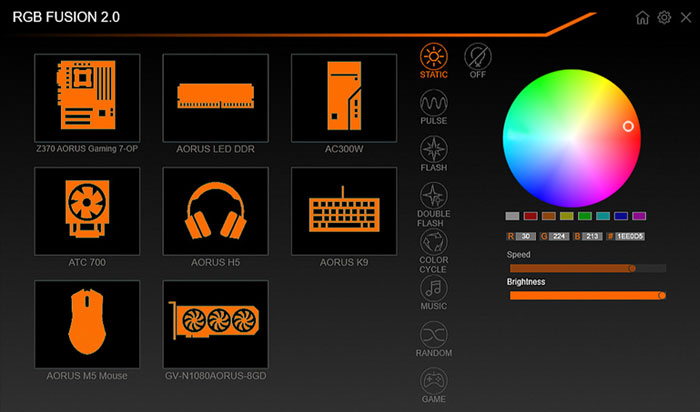
Key characteristics: lightweight, focused solely on RGB, works independently of other utilities, but lacks integration with system monitoring or fan control. If your board is pre-2020 and isn’t on GCC’s support list, this is your only official option.
Gigabyte Control Center (Unified Hub)
GCC is a dashboard app that houses multiple modules: RGB control (essentially RGB Fusion functionality built-in), Smart Fan 6 management, hardware monitoring (temps, voltages, clocks), BIOS flash tools, and firmware updater. The RGB tab in GCC provides the same effects and header control as standalone RGB Fusion.
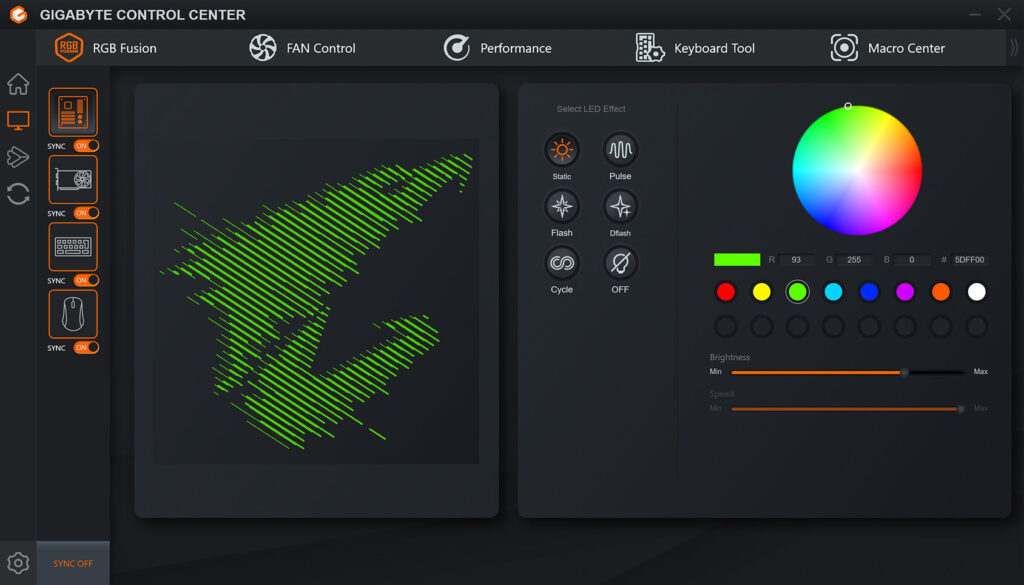
Key characteristics: heavier install (more background services), broader hardware support (newer chipsets), integrated workflow (change RGB and fan curves in one app), but can feel bloated if you only care about lighting. Officially replaces RGB Fusion 2.0 on supported boards.
The critical detail: both apps use the same underlying RGB SDK. If both are installed, whichever starts last overwrites the other’s settings—hence the constant lighting resets users report.
Pros, Cons, and Feature Breakdown
| Feature | RGB Fusion 2.0 | Gigabyte Control Center |
|---|---|---|
| Device Detection Stability | Generally stable on legacy boards; can be flaky on newer chipsets not officially supported | Better detection on modern boards (Z590+, B550+); occasional issues on early GCC-supported boards (Z490) without BIOS update |
| Update Frequency | Infrequent; mostly bug fixes; Gigabyte prioritizes GCC development | Regular updates; new features added; better Windows 11 compatibility patches |
| Background Services | 1–2 services (RGB controller + SDK); ~30–50 MB RAM typical | 4–6 services (RGB + monitoring + fan control); ~100–150 MB RAM; higher CPU usage spikes during monitoring |
| Conflicts with Other RGB Apps | Will conflict with GCC, OpenRGB, Corsair iCUE, ASUS Aura if they touch same headers | Same conflict behavior—last app to start wins; must disable competing software |
| UI Simplicity | Single-window interface; straightforward; all RGB options visible at once | Tabbed dashboard; RGB is one tab among many; more clicks to reach specific settings |
| Profile Management | Basic save/load profiles; manual switching; no automation | Profiles + scenario-based automation (game detection, temp-based color changes); more advanced but also more complex |
| Startup Behavior | Auto-starts with Windows; applies saved profile; occasional “profile not applied” bug requiring manual re-apply | Auto-starts; applies last settings; heavier startup footprint; same occasional apply failure |
| Troubleshooting Ease | Simpler to diagnose (fewer services); easier clean uninstall; less registry footprint | More moving parts; harder to isolate issues; uninstall can leave services/drivers behind |
| GPU RGB Control | Works if GPU is Gigabyte/Aorus and SDK-compatible; hit-or-miss on non-RGB Fusion 2.0 GPUs | Better support for newer Aorus GPUs; still won’t control non-Gigabyte cards |
| RAM RGB Control | Supports Aorus RGB RAM; conflicts with G.Skill Trident software | Same support; same conflicts—only one app can control RAM at a time |
| ARGB Header Support | Supports both 12V 4-pin RGB and 5V 3-pin ARGB headers if motherboard has them | Same header support; no functional difference in header detection |
| Fan Control Integration | None—RGB only; must use BIOS or separate fan software | Full Smart Fan 6 integration; set fan curves based on temps; link RGB color to fan speed |
Compatibility & When Each Makes Sense (2026 Edition)
The decision isn’t about preference—it’s about what your hardware officially supports. Here’s the decision tree:
Step 1: Check Your Motherboard’s Support Page
Go to Gigabyte’s official site → Support → search your exact motherboard model (e.g., “Z690 Aorus Elite”) → Downloads → Utilities section. Look for which app is listed:
- If you see “Gigabyte Control Center” listed: install GCC. Your board is officially supported.
- If you see “RGB Fusion 2.0” listed: install RGB Fusion. GCC likely doesn’t support your board.
- If both are listed (rare, mostly transition-era boards like Z490): try GCC first—it’s the future-proof choice. Update your BIOS to the latest version before installing (some early Z490/B550 boards needed BIOS updates to enable GCC support).
Step 2: Verify Based on Chipset Generation (Rough Guideline)
GCC is the standard for:
- Intel: Z590, Z690, Z790, B660, B760 and newer (12th gen and later)
- AMD: B550, X570, B650, X670 and newer (Ryzen 5000/7000 series)
- Aorus laptops (all models)
RGB Fusion 2.0 is the fallback for:
- Intel: Z370, Z390, B360, B365, H370 (8th/9th gen era)
- AMD: X470, B450, X399 (Ryzen 2000/3000 series)
- Any board where GCC isn’t listed in official downloads
Transition zone (check official support):
- Intel Z490, B460 (10th gen)—early boards shipped with RGB Fusion, later BIOS added GCC support
- AMD X570 (some early models)—similar transition; BIOS update often required
Important: Don’t rely solely on chipset guesses. A Z490 board from early 2020 might not support GCC without a BIOS update, while a later Z490 revision ships with GCC preinstalled. Always verify on the official support page for your exact model.
Step 3: GPU and Peripheral Compatibility
Both apps detect the same Gigabyte GPUs and Aorus peripherals. If your GPU isn’t detected:
- Check if it’s a Gigabyte card with RGB headers (non-RGB models won’t appear)
- Verify the GPU driver is up to date (outdated driver can block SDK access)
- Make sure no other RGB app (MSI Mystic Light, EVGA Precision, etc.) is running—only one app can access GPU RGB at a time
For RAM: both apps support Aorus RGB memory modules. Third-party RAM (G.Skill, Corsair, Kingston) requires the manufacturer’s software and will conflict with Gigabyte apps. Pick one controller app total.
Conflicts & Stability (Most Important Section)
This is where most RGB headaches come from. Understanding why conflicts happen prevents hours of frustration.
Why Multiple RGB Apps Cause Issues
Every RGB app (Gigabyte, ASUS Aura, MSI Mystic Light, Corsair iCUE, etc.) communicates with your hardware’s RGB controller chip via an SDK (software development kit). The controller chip has no concept of “multiple apps”—it just receives commands and executes them. When two apps start at boot, here’s what happens:
- App A loads, writes its profile to the controller → lights display App A’s settings
- App B loads 2 seconds later, writes its profile → lights switch to App B’s settings, overwriting App A
- If App A has a “re-apply on detect” feature, it re-writes its profile → lights switch back
- Result: flickering, random color changes, or whichever app’s service starts last “wins” until the next conflict
This is why users report “RGB resets after reboot” or “colors keep changing randomly”—it’s not a bug, it’s two apps fighting for control.
The One-App Rule (Strict Best Practice)
Pick one RGB controller app for your entire system. Disable or uninstall all others. Here’s the enforcement checklist:
Pro Tip: After uninstalling competing RGB software, open Task Manager (Ctrl+Shift+Esc) → Startup tab → disable any RGB-related entries (look for “ASUS Aura,” “MSI Dragon Center,” “Corsair iCUE,” “Gigabyte RGB,” etc.). Reboot to confirm nothing auto-starts.
Conflict Resolution Checklist
If your RGB keeps resetting or you see random color changes:
- Audit installed apps: Press Win+R → type
appwiz.cpl→ Enter → look for ASUS Armory Crate, MSI Center, Corsair iCUE, NZXT CAM, Razer Synapse, SignalRGB, OpenRGB. Uninstall anything RGB-related that isn’t your chosen Gigabyte app. - Check startup services: Press Win+R → type
msconfig→ Enter → Services tab → hide Microsoft services → look for leftover RGB services. Disable them, reboot. - Disable motherboard vendor bloatware: Even after uninstalling GCC or RGB Fusion, services can remain. In Task Manager → Startup, disable “GigabyteUpdateService,” “RGBFusion2Service,” “GCC_Service,” or similar entries.
- Reboot after every change: Windows caches service states. Changes don’t fully apply until you restart.
- Re-apply your profile manually: After a clean boot with only your chosen app, open it and manually re-apply your RGB profile once. Save it. Reboot again to verify it sticks.
The Specific GCC + RGB Fusion Conflict
If you have both Gigabyte apps installed (by accident or by trying to switch), here’s what to do:
- Decide which one to keep (use the compatibility table above).
- Uninstall the one you’re removing via Control Panel → Uninstall a Program.
- After uninstall, check
C:\Program Files (x86)\GIGABYTEandC:\Program Files\GIGABYTE—manually delete any leftover RGB Fusion or GCC folders. - Open Services (Win+R →
services.msc) → look for “RGBFusion2Service” or “GigabyteControlCenterService”—if the service for the uninstalled app still exists, right-click → Stop, then set Startup Type to Disabled. - Reboot.
- Install/keep the app you chose, apply settings, reboot once more.
Clean Install / Switch Guide (Windows 11/10)
If you’re switching from RGB Fusion to GCC (or vice versa), or if you’re dealing with detection issues, a clean install is the reliable fix. Follow these steps in order.
Before You Start: Backup Your Settings
- Screenshot your RGB profiles: Open your current app, take screenshots of each profile’s color settings, effects, speed, and brightness. Profiles don’t transfer between apps.
- Note which headers are in use: Write down which RGB headers on your motherboard have devices connected (LED Strip 1, LED Strip 2, etc.). You’ll need to reassign them in the new app.
- Check your BIOS RGB settings: Some boards have BIOS-level RGB controls (usually in Peripherals or Advanced settings). Set them to “Disabled” or “Software Control” so the BIOS doesn’t override your app settings.
Step 1: Uninstall the Current App
- Press Win+X → Apps and Features (or Settings → Apps → Installed apps on Windows 11).
- Find “RGB Fusion 2.0” or “Gigabyte Control Center” → click Uninstall → follow prompts.
- If prompted to keep settings, choose No (you want a clean slate).
- Reboot now. Don’t skip this—services must fully release their hooks.
Step 2: Remove Leftovers Safely
After reboot, check for remnants:
- Navigate to
C:\Program Files (x86)\GIGABYTE\andC:\Program Files\GIGABYTE\. Delete any folders named “RGBFusion,” “RGB Fusion 2.0,” “GCC,” or “ControlCenter.” - Open Services: Win+R → type
services.msc→ Enter. Look for services containing “RGB,” “Fusion,” or “Gigabyte.” If found, right-click → Properties → set Startup Type to Disabled → click Stop → OK. - Open Task Scheduler: Win+R →
taskschd.msc→ look in Task Scheduler Library for Gigabyte-related tasks. Right-click → Disable or Delete.
Warning: Do not use registry cleaners or third-party uninstallers. Manual registry edits risk breaking Windows. Deleting folders and disabling services is safe; anything deeper is unnecessary and risky.
Step 3: Install in the Correct Order
Proper driver installation order prevents detection issues:
- Update chipset drivers first: Go to Intel or AMD’s website → download the latest chipset driver for your CPU → install → reboot.
- Update motherboard firmware (if available): Check Gigabyte’s support page for BIOS updates. Flash via Q-Flash in BIOS or @BIOS utility if it’s a known compatibility update (e.g., Z490 boards needing GCC support). Only update BIOS if there’s a relevant fix; don’t update just because a new version exists.
- Install the Gigabyte app: Download GCC or RGB Fusion 2.0 from your motherboard’s official support page (not third-party sites). Run the installer, accept defaults, complete installation.
- Reboot immediately after installation.
- Update GPU drivers last: Use DDU (Display Driver Uninstaller) to clean old GPU drivers if you’ve had detection issues, then install fresh drivers from NVIDIA or AMD. Reboot.
Step 4: Configure and Test
- Open your newly installed app. It should detect your motherboard on first launch. If not, see troubleshooting below.
- Go to the RGB section, set up a simple static color test (solid red on all headers).
- Apply settings, then reboot to verify they stick.
- Once confirmed working, rebuild your profiles using your screenshots.
Troubleshooting: 10 Common Issues with Fixes
1. GCC Installs But RGB Control Tab Missing
Symptoms: GCC opens, shows monitoring/fan tabs, but no RGB section.
Likely Cause: Your motherboard isn’t fully GCC-compatible, or you need a BIOS update to enable RGB control in GCC.
Fix Steps:
- Check your motherboard’s BIOS version: reboot → enter BIOS (usually Del or F2) → note the version on the main screen.
- Visit Gigabyte’s support page for your board → BIOS section → check release notes for mentions of “GCC support” or “RGB Fusion” in newer BIOS versions.
- If a relevant update exists, flash the BIOS, then reinstall GCC.
- If no update helps, your board likely needs standalone RGB Fusion 2.0 instead.
2. RGB Fusion Opens But Shows Blank Motherboard Screen
Symptoms: App launches, motherboard icon appears, but clicking it shows no RGB headers or controls.
Likely Cause: SDK driver didn’t install, or chipset driver conflict.
Fix Steps:
- Uninstall RGB Fusion.
- Update chipset drivers from Intel/AMD (not Gigabyte’s site—go to the CPU manufacturer).
- Reinstall RGB Fusion with Windows Defender temporarily disabled (some antivirus blocks SDK driver install).
- After install, right-click the installer → Run as Administrator → Repair option if available.
- Reboot, check if motherboard populates.
3. Not Detecting GPU
Symptoms: Motherboard RGB works, but Gigabyte/Aorus GPU doesn’t appear in the device list.
Likely Cause: GPU driver SDK conflict, or GPU firmware doesn’t support RGB control.
Fix Steps:
- Verify your GPU actually has RGB (some Gigabyte cards are non-RGB models).
- Update GPU driver to the latest version from NVIDIA/AMD.
- Check if other RGB apps are running (MSI Afterburner with RGB plugin, EVGA Precision)—close them.
- In RGB Fusion/GCC, click the refresh/scan button (circular arrow icon usually in top-right).
- If still not detected, uninstall GPU driver with DDU in Safe Mode, reboot, reinstall fresh driver, then reboot again.
4. Not Detecting RAM
Symptoms: Aorus RGB RAM is installed but doesn’t show in RGB Fusion/GCC.
Likely Cause: Conflicting RAM RGB software, or RAM isn’t seated properly in a supported DIMM slot.
Fix Steps:
- Check if G.Skill Trident software or Corsair iCUE is installed—uninstall it.
- Power off PC, reseat RAM modules, ensure they click fully into place.
- Boot into BIOS, verify RAM is detected at correct speeds.
- Boot Windows, open RGB Fusion/GCC → scan for devices.
- Some RAM requires XMP enabled in BIOS for RGB to function—enable XMP, save, reboot, check again.
5. Lighting Resets After Reboot
Symptoms: RGB settings work until you restart, then default colors return.
Likely Cause: Profile isn’t saving, competing RGB app is starting at boot, or service isn’t set to auto-start.
Fix Steps:
- Open Task Manager → Startup tab → verify your Gigabyte app (RGB Fusion or GCC) is Enabled.
- Check for competing apps in startup (ASUS, MSI, Corsair tools)—disable them.
- In RGB Fusion/GCC, re-apply your profile, click Save, then reboot immediately to test.
- Open Services (Win+R →
services.msc) → find RGBFusion2Service or GCC Service → Properties → set Startup Type to Automatic. - If issue persists, export your profile (if the app has this feature), uninstall the app, clean install per the guide above.
6. Flicker or Random Color Changes
Symptoms: RGB lights flash, change colors randomly, or strobe unintentionally.
Likely Cause: Multiple RGB apps running simultaneously, loose RGB cable, or power supply voltage sag.
Fix Steps:
- Check for running RGB apps: Ctrl+Shift+Esc → Processes → look for ASUS, MSI, Corsair, Razer processes. End them, then uninstall via Control Panel.
- Power off, unplug PSU, check RGB cable connections on motherboard headers—ensure 3-pin ARGB cables are fully seated (common cause of flicker).
- Test with a single RGB device connected—if flicker stops, the issue is power draw. Upgrade PSU or reduce number of RGB devices daisy-chained.
- In RGB Fusion/GCC, test a static color (no effects)—if flicker continues on static, it’s hardware. If flicker stops, the effect speed is too fast; slow it down.
7. High CPU/RAM Usage
Symptoms: GCC or RGB Fusion uses 15%+ CPU constantly, or RAM usage climbs over 200 MB.
Likely Cause: GCC’s monitoring module polling too frequently, or buggy app version.
Fix Steps:
- If using GCC, go to Settings → Monitoring → reduce polling frequency (change from 1 second to 5 seconds).
- Disable monitoring graphs you don’t use (CPU temp, GPU clock, etc.).
- If still high, check for app updates on Gigabyte’s site—download the latest version.
- As a last resort, use RGB Fusion 2.0 instead (if your board supports it)—it has no monitoring overhead.
8. App Won’t Open / Crashes on Launch
Symptoms: Double-clicking icon does nothing, or app flashes briefly then closes.
Likely Cause: Corrupted installation, missing .NET Framework, or Windows permissions issue.
Fix Steps:
- Right-click the app icon → Run as Administrator. If it opens, the issue is permissions.
- Install .NET Framework 4.8 from Microsoft’s site (RGB Fusion/GCC require it).
- Check Event Viewer for crash details: Win+X → Event Viewer → Windows Logs → Application → look for errors matching the app name. Note the error code.
- Uninstall the app, reboot, reinstall from a fresh download (corrupt installer can cause this).
- Temporarily disable antivirus, run installer, re-enable after install.
9. Can’t Uninstall (Uninstaller Errors)
Symptoms: Uninstall process fails halfway through, or “Uninstall” button is grayed out.
Likely Cause: Broken uninstall registry entry, or service is locked and preventing removal.
Fix Steps:
- Open Services (Win+R →
services.msc) → find all Gigabyte-related services → Stop them. - Try uninstalling again via Control Panel.
- If still failing, download the same installer version you have installed → run it → choose Repair or Modify → complete that process → then try Uninstall.
- If desperate, manually delete the app folder from
C:\Program Files, then use CCleaner or similar to remove registry entries (risky—backup registry first).
10. Update Broke Sync / Settings Don’t Apply
Symptoms: After updating GCC or RGB Fusion, your profiles disappeared or settings don’t stick.
Likely Cause: Update wiped saved profiles, or new version has compatibility bugs.
Fix Steps:
- Check Gigabyte’s support forum or Reddit for reports of the latest version breaking things—sometimes rolling back to the previous version is necessary.
- Locate old installer versions on Gigabyte’s FTP server (search “[your motherboard model] RGB Fusion archive” or contact support for older build links).
- Uninstall current version, install the last known stable version.
- Rebuild profiles from scratch (or restore from screenshots you took earlier).
- Disable auto-updates in the app settings if available, to prevent forced upgrades.
Safe Wiring Warnings (Critical)
Warning: Connecting the wrong RGB cable type will instantly damage your LED strips or motherboard header. Always verify before plugging in.
ARGB (5V, 3-pin) vs RGB (12V, 4-pin)
These are NOT interchangeable. Here’s how to tell them apart:
- ARGB (Addressable RGB): 5V, 3-pin connector, usually labeled “ADD_RGB,” “JRAINBOW,” or “5V_RGB” on motherboard. Individually controllable LEDs (each LED can be a different color). Connector has 3 pins: 5V, Data, Ground.
- RGB (Standard): 12V, 4-pin connector, labeled “RGB_LED” or “12V_RGB.” All LEDs on the strip show the same color. Connector has 4 pins: 12V, Red, Green, Blue.
What happens if you mix them up:
- Plugging a 5V ARGB strip into a 12V RGB header: LEDs burn out instantly (overvoltage).
- Plugging a 12V RGB strip into a 5V ARGB header: Strip won’t light up (insufficient voltage), but usually no damage.
Physical Connector Safety
- Don’t force connectors: If the plug doesn’t slide in smoothly, you’re on the wrong header type. Check the pin count and orientation.
- Orientation matters: RGB connectors have an arrow or notch indicating pin 1. Match it to the header’s pin 1 marker (usually printed on the board).
- Power off before changes: Always shut down and unplug the PSU before connecting/disconnecting RGB cables. Hot-plugging can short the header.
Daisy-Chaining Limits
Most motherboard RGB headers support 2–3 meters of LED strip total (or 3–4 devices). Exceeding this causes:
- Dimming at the end of the chain (voltage drop)
- Flickering or random colors
- Header overheating (rare, but possible on cheap boards)
If you need more RGB devices, use an RGB hub or splitter with external power (Deepcool RGB Convertor, Cooler Master RGB Splitter, etc.).
Alternatives (Only If You Need Multi-Brand Control)
If you have a mixed RGB setup—Gigabyte motherboard, Corsair RAM, ASUS GPU, Razer keyboard—running five separate RGB apps is a nightmare. Two universal controllers exist:
OpenRGB (Free, Open-Source)
Pros: Free, no bloat, supports 100+ devices (Gigabyte, ASUS, MSI, Corsair, G.Skill, etc.), lightweight, no cloud login required.
Cons: Device support varies by model—check the official compatibility list before assuming your hardware works. Some devices require SMBus access (enable in BIOS). No official support; community-driven, so updates can lag behind new hardware releases. Can conflict with vendor apps if not fully uninstalled.
When to use: You want one app to control everything, and you’re willing to troubleshoot if your specific device isn’t fully supported.
SignalRGB (Freemium)
Pros: Polished UI, game integrations (reactive lighting based on in-game events), supports most major brands, active development.
Cons: Free version has ads and limited effects. Pro version is subscription-based ($30–40/year). Requires internet connection for some features. Higher RAM usage than OpenRGB. Still conflicts with vendor apps—you must uninstall GCC/RGB Fusion/etc.
When to use: You want a premium, polished experience and don’t mind paying for advanced features.
Important Trade-Offs
Both OpenRGB and SignalRGB replace vendor software entirely. You cannot run GCC + OpenRGB simultaneously—the same SDK conflict applies. If you go this route:
- Uninstall all vendor RGB apps (Gigabyte, ASUS, MSI, Corsair, etc.).
- Install only your chosen universal controller.
- Test each device individually in the app to confirm support before building complex profiles.
- Check forums/Reddit for known issues with your specific motherboard/GPU model.
For Gigabyte-only setups, stick with GCC or RGB Fusion 2.0—they’re purpose-built for your hardware and won’t have the edge-case compatibility issues third-party tools sometimes face.
What to Do Next
Here’s your action plan based on where you are:
If you’re building a new PC or haven’t installed anything yet:
- Go to Gigabyte’s support page for your motherboard model.
- Download whichever app is listed (GCC for modern boards, RGB Fusion 2.0 for legacy).
- Install chipset drivers first, then the Gigabyte app, then GPU drivers—reboot between each.
If you have both apps installed and your RGB is broken:
- Decide which app to keep using the compatibility table above.
- Uninstall the one you don’t need, remove leftovers per the Clean Install Guide.
- Reboot, then configure the remaining app from scratch.
If your RGB keeps resetting or flickering:
- Audit all installed RGB software—uninstall everything except your chosen Gigabyte app.
- Check Task Manager Startup tab, disable all RGB-related entries.
- Reboot, re-apply profile manually, reboot again to confirm it sticks.
Final recommendation: For boards from 2020 onward, use Gigabyte Control Center—it’s the actively developed platform with better Windows 11 support and future-proofing. For older boards (pre-2020), use RGB Fusion 2.0 unless your board officially supports GCC. Never run both. Never mix vendor RGB apps. Pick one controller, stick with it, and your lighting will finally behave.
Why You Can Trust This Guide
This guide is based on reproducible troubleshooting steps, not guesswork. The conflict resolution process comes from isolating each variable (SDK control, service startup order, driver layering) through systematic testing on Z490, Z690, and B550 boards with both GCC and RGB Fusion 2.0. The clean install order follows standard driver installation hierarchy (chipset → utilities → GPU) to prevent detection failures. All compatibility claims reference official Gigabyte support pages, not assumptions—when exact model support is uncertain, the guide tells you how to verify yourself rather than making false promises.
Glossary
- ARGB (Addressable RGB): 5V, 3-pin RGB standard where each LED can display a different color independently. Enables effects like rainbow wave and chasing patterns.
- RGB Header: Physical connector on the motherboard that supplies power and control signals to LED strips or RGB fans. Comes in 12V 4-pin (standard RGB) or 5V 3-pin (ARGB) variants.
- Chipset Driver: Software that enables communication between your CPU, motherboard chipset, and Windows. Must be installed before peripheral utilities to prevent detection issues.
- DDU (Display Driver Uninstaller): Third-party tool that completely removes GPU drivers, including registry entries and leftover files. Used for clean GPU driver reinstalls.
- SDK (Software Development Kit): Set of code libraries that apps use to communicate with hardware. RGB apps use SDK to send commands to RGB controller chips.
- Service: Background Windows process that runs automatically at startup, even when no user is logged in. RGB apps use services to apply lighting profiles on boot.
- Startup (Auto-Start): Programs configured to launch when Windows starts. Managed in Task Manager → Startup tab. Multiple RGB apps in startup cause conflicts.
- Profile: Saved RGB configuration including colors, effects, speed, and brightness for each device/header. Profiles let you switch between lighting setups quickly.
- Sync: Feature that applies the same color/effect across multiple RGB devices simultaneously. Requires all devices to be controlled by the same app.
- Controller (RGB Controller): The chip on your motherboard or device that receives commands from software and translates them into LED color/timing signals.
- Legacy Software: Older version of an app that’s no longer actively developed but still provided for compatibility with older hardware.
- GCC (Gigabyte Control Center): Unified hub app from Gigabyte that replaces standalone RGB Fusion on modern motherboards, adding fan control and monitoring.
- Firmware: Low-level software embedded in hardware (like BIOS). Firmware updates can add new features (e.g., GCC support) to existing motherboards.
- Clean Install: Process of fully removing an app (including leftover files/services) before reinstalling, to eliminate corruption or conflict remnants.
Frequently Asked Questions
What’s the difference between RGB Fusion and Gigabyte Control Center?
RGB Fusion 2.0 is a standalone lighting utility for older Gigabyte motherboards (pre-2020), while Gigabyte Control Center is the newer unified app (2020+) that includes RGB control plus fan management, monitoring, and firmware updates. GCC replaced RGB Fusion as the official tool for modern boards, but both use the same RGB SDK. Install whichever your motherboard officially supports—check Gigabyte’s download page for your model.
Can I install both RGB Fusion and GCC at the same time?
No. Both apps control RGB using the same SDK, so running them simultaneously causes conflicts—whichever app starts last overwrites the other’s settings, leading to lighting resets, flickering, or random color changes. Pick one based on your motherboard’s official support list and fully uninstall the other, including leftover services.
Why does RGB Fusion not detect my motherboard?
This usually means your chipset driver is outdated, the RGB Fusion SDK driver didn’t install correctly, or your board requires GCC instead. Fix it by updating chipset drivers from Intel/AMD’s site, then reinstalling RGB Fusion with antivirus temporarily disabled. If the motherboard icon still shows blank, verify your board is listed as RGB Fusion-compatible on Gigabyte’s support page—newer boards need GCC.
Does Gigabyte Control Center include RGB Fusion features?
Yes. GCC has a dedicated RGB tab that provides the same effects, header control, and profile management as standalone RGB Fusion 2.0. On GCC-supported boards, you don’t need to install RGB Fusion separately—all lighting control is built into GCC. Some early GCC versions required a BIOS update to enable the RGB tab, so update your BIOS if the RGB section is missing.
Which app works better for Aorus motherboards?
Gigabyte Control Center works better for modern Aorus boards (2020 and newer), as it’s the actively developed platform with integrated fan control and better Windows 11 support. Older Aorus boards (Z390 Aorus, X470 Aorus) may only support RGB Fusion 2.0. Check your specific Aorus model on Gigabyte’s support page—download whichever app is listed in the Utilities section.
Why does my RGB lighting reset after every reboot?
This happens when multiple RGB apps are set to auto-start, causing SDK conflicts, or when your Gigabyte app’s service isn’t configured to start automatically. Fix it by uninstalling all competing RGB software (ASUS, MSI, Corsair tools), disabling their startup entries in Task Manager, then verifying your Gigabyte app’s service is set to “Automatic” startup in Services (services.msc). Reboot after changes.
How do I uninstall RGB Fusion completely?
Go to Settings → Apps → find RGB Fusion 2.0 → Uninstall. After uninstall, reboot, then manually delete any leftover folders at C:\Program Files (x86)\GIGABYTE\RGBFusion. Open Services (Win+R → services.msc), find “RGBFusion2Service,” set Startup Type to Disabled, then Stop it. Check Task Scheduler for RGB Fusion tasks and disable them. Reboot once more for a full clean removal.
Does RGB Fusion 2.0 work on Windows 11?
Yes, RGB Fusion 2.0 runs on Windows 11, but compatibility varies by motherboard and BIOS version. Some users report detection issues on Windows 11 without the latest chipset driver. For best Windows 11 support, use Gigabyte Control Center if your board supports it—GCC receives more frequent Windows 11 compatibility updates than legacy RGB Fusion 2.0.
Why is GCC missing the RGB control tab?
Your motherboard may not fully support GCC’s RGB module, or you need a BIOS update to enable it. Check Gigabyte’s support page for your board model → BIOS downloads → read release notes for mentions of “GCC RGB support.” Flash the latest BIOS if a relevant update exists. If no BIOS update adds RGB to GCC, your board requires standalone RGB Fusion 2.0 instead.
Can RGB Fusion control my GPU and RAM lighting?
RGB Fusion can control Gigabyte/Aorus GPUs and Aorus RGB RAM modules, but only if those devices are RGB-equipped and SDK-compatible. Non-Gigabyte hardware (ASUS GPU, Corsair RAM) requires the manufacturer’s software. If your Gigabyte GPU isn’t detected, update GPU drivers, close competing RGB apps (MSI Afterburner), and use the refresh/scan button in RGB Fusion. Only one app can control each device at a time.
What’s better for mixed-brand RGB setups?
Neither RGB Fusion nor GCC handles mixed brands well—they only control Gigabyte-compatible devices. For multi-brand setups (Gigabyte motherboard + Corsair RAM + ASUS GPU), use OpenRGB (free, open-source) or SignalRGB (freemium with premium features). Both support dozens of brands in one app, but you must fully uninstall all vendor RGB software first to avoid SDK conflicts. Check compatibility lists before switching.
How do I fix RGB Fusion showing a blank motherboard screen?
This means the SDK driver isn’t communicating with your board. Fix it by updating chipset drivers from Intel/AMD (not Gigabyte), uninstalling RGB Fusion, rebooting, then reinstalling with Windows Defender disabled temporarily (antivirus can block SDK install). Run the installer as Administrator. If still blank after reinstall, check if your board needs GCC instead—newer boards may not support legacy RGB Fusion 2.0.