Picture this: You’ve spent hours perfecting your RGB lighting setup, creating the perfect color scheme that matches your battlestation aesthetic. Then RGB Fusion 2.0 prompts you for an update, and suddenly you’re staring at a software that won’t recognize your hardware or has wiped all your carefully crafted profiles. Sound familiar?
RGB Fusion 2.0 updates can be a double-edged sword. While newer versions often bring bug fixes and hardware support, they can also introduce compatibility issues or reset your lighting configurations. The good news? With the right approach, you can update safely while preserving your lighting profiles and avoiding the headaches that plague many users.
This guide walks you through a bulletproof method to update RGB Fusion 2.0 without losing your custom lighting profiles or breaking your system’s RGB functionality. We’ll cover everything from pre-update preparation to post-update troubleshooting, ensuring your lighting setup remains intact throughout the process.
Understanding RGB Fusion 2.0 Update Risks
Before diving into the update process, you need to understand what can go wrong. RGB Fusion 2.0 updates aren’t just simple software patches—they often include driver changes, hardware compatibility adjustments, and database modifications that can impact your existing setup.
Common issues after updating include:
- Complete loss of saved lighting profiles
- Hardware detection failures for previously working components
- Conflicting driver installations causing system instability
- Profile corruption leading to incorrect color displays
- Inability to control specific RGB zones or components
The root cause usually stems from RGB Fusion’s database structure changes between versions. When you update, the software may not properly migrate your existing profiles, or worse, it might overwrite critical configuration files without backing them up first.
Hardware compatibility considerations: Not every RGB Fusion update supports every piece of hardware. Gigabyte occasionally drops support for older components or changes how newer ones are detected. Check your exact motherboard model and RGB components against the official support list before updating. Navigate to Gigabyte’s support page, enter your motherboard model, and verify that your specific revision is listed under the latest RGB Fusion version’s compatibility notes.
Understanding these risks helps you make an informed decision about whether to update immediately or wait for user feedback on forums and communities.
Pre-Update Preparation Steps
Proper preparation is your insurance policy against update disasters. This phase requires methodical documentation and backup creation—skip these steps at your own peril.
Profile Documentation and Screenshots
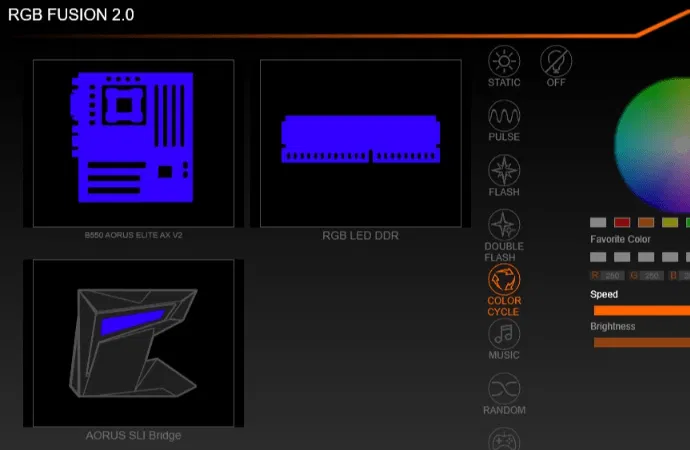
Start by documenting every aspect of your current lighting setup. Open RGB Fusion 2.0 and take detailed screenshots of each profile, including:
- Main dashboard showing all detected hardware
- Individual component settings (motherboard, RAM, GPU if supported)
- Color picker settings with exact hex codes
- Animation speed and pattern configurations
- Synchronization settings between components
Write down the exact names of your profiles and note any custom color codes you’ve used. This documentation becomes crucial if you need to recreate profiles from scratch.
Locating and Backing Up Profile Files
RGB Fusion 2.0 stores profile data in specific Windows directories. Navigate to these locations and create backup copies:
Primary profile locations:
C:Users[Username]AppDataLocalGIGABYTERGBFusionC:Users[Username]AppDataRoamingGIGABYTERGBFusionC:ProgramDataGIGABYTERGBFusion2
Copy these entire folders to a backup location, preferably on a different drive or cloud storage. Pay special attention to files with extensions like .dat, .xml, and .cfg—these contain your profile configurations.
System Information Gathering
Document your current system configuration to help with troubleshooting if needed:
- Current RGB Fusion version (found in Help > About)
- Motherboard model and BIOS version
- Windows version and build number
- List of all RGB-enabled components
- Any third-party RGB software installed
Create a system restore point as a final safety net. While it won’t preserve your RGB profiles, it can help if the update causes broader system issues.
Safe Update Process
The update process itself requires careful execution. Rushing through this phase is where most users encounter problems that could have been easily avoided.
Choosing the Right Update Source
Always download RGB Fusion updates directly from Gigabyte’s official support website. Avoid third-party download sites or auto-update prompts from older versions, as these may provide outdated or modified installers.
Navigate to your motherboard’s specific support page and download the latest RGB Fusion version listed there. Don’t assume the version on the main RGB Fusion page is compatible with your hardware—motherboard-specific pages often have tailored versions.
Pre-Installation Environment Setup
Before running the installer, optimize your system environment:
- Close all RGB software: Exit RGB Fusion, any third-party RGB tools, and RGB-related system tray applications
- Disable antivirus temporarily: Some security software interferes with driver installations
- Run as administrator: Right-click the installer and select “Run as administrator”
- Disconnect unnecessary USB devices: Reduce potential conflicts during driver installation
Installation Method Selection
When the installer launches, you’ll typically see options for installation types. Choose the “Custom” or “Advanced” installation if available, as this often provides more control over what gets installed or updated.
Key installation decisions:
- Select “Keep existing profiles” if the option appears
- Choose “Update drivers only” rather than full reinstallation when possible
- Decline any offers to install additional software bundles
Monitor the installation process carefully. If you see any error messages or warnings about driver conflicts, note them down for troubleshooting purposes.
Post-Installation Verification
After installation completes, don’t immediately restart your computer. First, verify the installation succeeded:
- Check if RGB Fusion 2.0 launches without errors
- Verify all your RGB hardware is detected
- Confirm your profiles are still visible in the software
- Test basic lighting functionality before restarting
Only restart your computer after confirming the software appears to be working correctly. This approach helps isolate whether problems occur during installation or after the system restart.
Profile Backup and Restoration Techniques
Even with careful preparation, profiles sometimes don’t survive updates intact. Having multiple backup strategies ensures you can recover your lighting configurations regardless of what goes wrong.
Manual Profile Export Methods
RGB Fusion 2.0 includes built-in export functionality, though it’s not always obvious how to access it. Before updating:
- Open RGB Fusion 2.0 and navigate to each profile
- Look for “Export” or “Save” options in the profile menu (usually accessible via right-click)
- Save each profile with a descriptive name including the date
- Store exported files in your backup directory
Some versions hide the export function in the settings menu or require you to access it through keyboard shortcuts. If you can’t find an export option, the file-level backup method becomes even more critical.
File-Level Restoration Process
If your profiles disappear after updating, you can often restore them by copying your backed-up files back to their original locations. However, this process requires specific timing:
Restoration steps:
- Close RGB Fusion 2.0 completely (check Task Manager to ensure no background processes remain)
- Navigate to the profile directories you backed up earlier
- Replace the current files with your backup copies
- Restart RGB Fusion 2.0 and check if profiles are restored
Warning: File restoration doesn’t always work if the new RGB Fusion version uses a different profile format. If restoration fails, you’ll need to recreate profiles manually using your screenshots and documentation.
Creating Redundant Backups
Don’t rely on a single backup method. Create multiple backup types:
- Local file backup: Copy profile folders to another drive
- Cloud backup: Upload profile folders to cloud storage
- Export files: Use RGB Fusion’s built-in export function
- Documentation backup: Screenshots and written notes stored separately
This redundancy ensures you have options if one backup method fails or becomes incompatible with the updated software.
Troubleshooting Common Update Issues
Even with perfect preparation, RGB Fusion updates can still cause problems. Knowing how to diagnose and fix common issues saves hours of frustration and prevents unnecessary reinstallations.
Hardware Detection Problems
If RGB Fusion stops detecting your hardware after updating, work through these troubleshooting steps systematically:
Driver-related fixes:
- Open Device Manager and look for any devices with yellow warning icons
- Expand “System devices” and look for RGB-related entries
- Right-click problematic devices and select “Update driver”
- Choose “Browse my computer for drivers” and point to the RGB Fusion installation directory
If driver updates don’t resolve the issue, the problem might be service-related. RGB Fusion relies on Windows services that sometimes fail to start properly after updates.
Service troubleshooting:
- Press Windows + R, type “services.msc” and press Enter
- Look for services containing “RGB,” “Gigabyte,” or “Lighting”
- Right-click each relevant service and select “Restart”
- If services won’t start, check their startup type is set to “Automatic”
Profile Loading Failures
When profiles appear in the list but won’t load or display incorrectly, the issue is usually profile corruption or format incompatibility.
Profile repair strategies:
- Try loading profiles one at a time to identify which ones are corrupted
- Create a new profile with simple settings to test basic functionality
- If new profiles work, recreate your custom profiles using your documentation
- For partially working profiles, note which settings load correctly and which don’t
Sometimes profiles load but display wrong colors. This usually indicates color space or calibration changes between RGB Fusion versions. Use your hex code documentation to manually adjust colors back to their intended values.
Software Conflicts and Resolution
RGB Fusion conflicts with other RGB software are increasingly common as more manufacturers create their own lighting ecosystems.
Conflict identification: Check if you have any of these installed alongside RGB Fusion:
- MSI Dragon Center or Mystic Light
- ASUS Aura Sync or Armoury Crate
- Corsair iCUE
- Razer Synapse
- OpenRGB or other third-party tools
If conflicts exist, you have several resolution options. The most reliable approach is to choose one primary RGB software and disable or uninstall others. Alternatively, configure each software to control only specific hardware components, though this requires careful coordination.
Advanced conflict resolution: Some conflicts occur at the driver level. Use Device Manager to identify which RGB drivers are installed and temporarily disable conflicting ones to test functionality. This helps determine if the issue is software-based or hardware-based.
Advanced Configuration Tips
Once you’ve successfully updated RGB Fusion 2.0 and restored your profiles, implementing advanced configuration strategies helps prevent future issues and improves overall system stability.
Optimizing RGB Fusion Performance
RGB Fusion can consume significant system resources, especially with complex lighting effects. Optimize performance to reduce the likelihood of crashes or conflicts:
Performance optimization steps:
- Reduce animation complexity on profiles you use daily
- Limit the number of active profiles running simultaneously
- Disable RGB Fusion’s auto-start if you don’t need lighting controls at boot
- Close the RGB Fusion interface when not actively configuring lighting
Monitor your system’s resource usage with Task Manager while RGB Fusion is running. If you notice high CPU or memory usage, simplify your lighting effects or consider using static colors instead of animated patterns.
Creating Update-Resistant Profile Structures
Design your profiles with future updates in mind. This approach minimizes the impact when RGB Fusion changes how it handles certain features:
- Use standard colors: Stick to common color values that are less likely to be affected by color space changes
- Avoid complex synchronization: Simple per-component settings are more stable than complex sync patterns
- Document everything: Maintain detailed notes about each profile’s purpose and settings
- Test regularly: Periodically verify your profiles still work as expected
Implementing Automated Backup Solutions
Set up automated backups to protect your profiles without manual intervention:
Windows Task Scheduler method:
- Create a batch file that copies RGB Fusion profile directories to your backup location
- Use Task Scheduler to run this batch file weekly or monthly
- Include timestamp folders so you maintain multiple backup versions
- Test your backup script regularly to ensure it’s working correctly
Consider using cloud storage sync for your backup directory, ensuring your profiles are protected even if your local backups fail.
Version Control Strategies
Treat RGB Fusion updates like software deployments in enterprise environments:
- Wait for community feedback before updating to new versions
- Keep the previous RGB Fusion installer as a rollback option
- Test updates on a secondary system if possible
- Document which versions work best with your specific hardware configuration
This conservative approach helps you avoid being an early adopter of problematic updates while still benefiting from important bug fixes and new features.
Maintaining Long-Term RGB Stability
Successfully updating RGB Fusion is just the beginning. Long-term stability requires ongoing maintenance and proactive monitoring to prevent issues before they impact your lighting setup.
Regular Maintenance Schedule
Establish a monthly maintenance routine to keep RGB Fusion running smoothly:
Monthly tasks:
- Verify all profiles load correctly and display expected colors
- Check for Windows updates that might affect RGB drivers
- Review RGB Fusion’s resource usage and performance
- Update your profile backups with any changes
- Clean temporary files from RGB Fusion directories
Quarterly tasks:
- Research new RGB Fusion versions and their compatibility
- Test profile restoration procedures to ensure backups work
- Review and update your hardware documentation
- Consider whether newer RGB Fusion versions offer features you need
Monitoring for Stability Issues
Watch for early warning signs that indicate potential RGB Fusion problems:
- Profiles loading slowly or inconsistently
- Colors appearing different than configured
- Hardware detection becoming intermittent
- Increased system resource usage
- Windows Event Viewer showing RGB-related errors
Address these issues proactively rather than waiting for complete failures. Often, a simple service restart or profile recreation can prevent more serious problems.
Building Community Knowledge
Engage with RGB Fusion communities to stay informed about issues and solutions:
- Follow Gigabyte’s official forums and social media
- Participate in Reddit communities like r/gigabyte and r/battlestations
- Share your successful update experiences to help others
- Document any unique solutions you discover
Community knowledge often provides faster solutions than official support channels, especially for newly discovered issues.
Consider contributing to community wikis or guides with your experiences. This helps build the collective knowledge base and ensures solutions remain available even if individual forum posts disappear.
Updating RGB Fusion 2.0 doesn’t have to be a nerve-wracking experience that threatens your carefully crafted lighting profiles. With proper preparation, methodical execution, and the right troubleshooting knowledge, you can safely update while preserving your custom configurations.
The key lies in treating RGB Fusion updates as serious system modifications rather than simple software updates. By backing up your profiles, documenting your setup, and following the systematic update process outlined in this guide, you’ll avoid the common pitfalls that plague other users.
Remember that patience pays off when dealing with RGB Fusion updates. Rushing through the process or skipping backup steps might save a few minutes initially, but could cost hours of reconfiguration later. The investment in proper update procedures protects both your time and your perfectly tuned lighting aesthetic.
Ready to update your RGB Fusion 2.0 safely? Start by creating those crucial backups today, even if you’re not planning to update immediately. Having a solid backup strategy in place means you’re always prepared when the next update becomes available or necessary.
Share your RGB Fusion update experiences in the comments below. Did you encounter any unique issues not covered in this guide? Your experience could help fellow enthusiasts avoid similar problems and contribute to the community’s collective knowledge.